Gumps & dialog design
Inspect supported native gumps, import/export artwork and design Sphere dialogs with a visual preview and generated script.
A WALK THROUGH THE WORKSHOP
See where the tools meet, what each workflow produces and what you can check before it reaches your shard.
NEW IN 0.33.14 / MODERNUO AND ZIP IMPORTS
Import complete armor sets and native mounts with a ModernUO, RunUO or ServUO profile. Checked source and free-space inventories are shared within the current operation, then the files are checked again before the proposal is accepted. Native occupancy, queued reservations, changed files and explicit replacement review remain enforced.
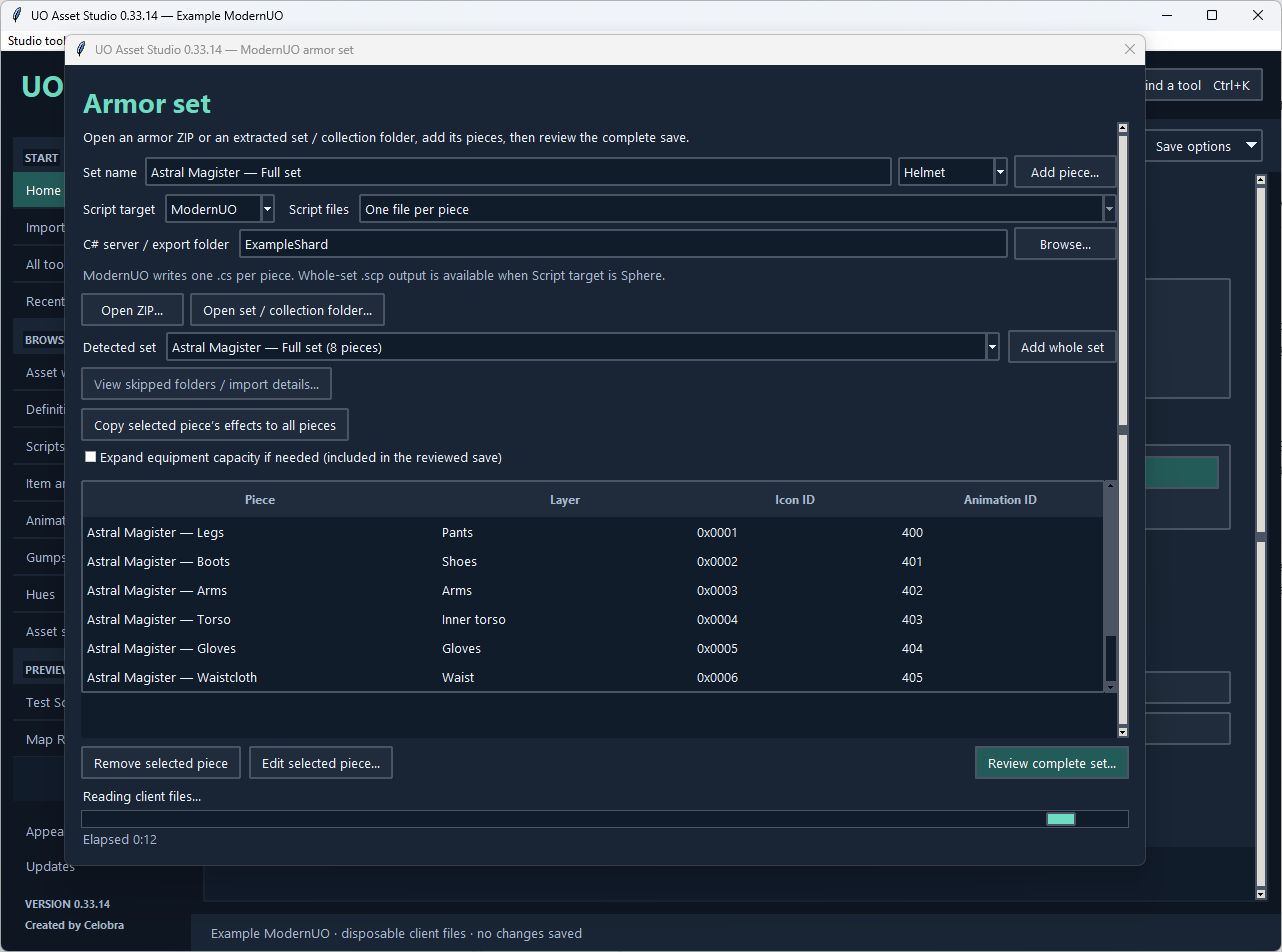
Armor: choose Complete armor set → Open ZIP, or Open set / collection folder. Choose a Detected set, click Add whole set, then Review complete set. Each independent piece retains its icon, male/female paperdolls, equipment VD and native layer. C# targets keep one new .cs file per piece in the chosen C# server / export folder. A whole-suit VD cannot be split automatically.
Nested armor folders are searched within the safety budget, including compatible preview/reference/artwork folders. Unrelated outer metadata does not hide inner sets. Complete sets stay selectable when another nested package is incomplete; View skipped folders / import details shows the reasons in a read-only, scrollable report with Copy details. A rejected armor manifest is never used to guess a partial set. Unsafe paths and archive size/CRC limits still stop loading.
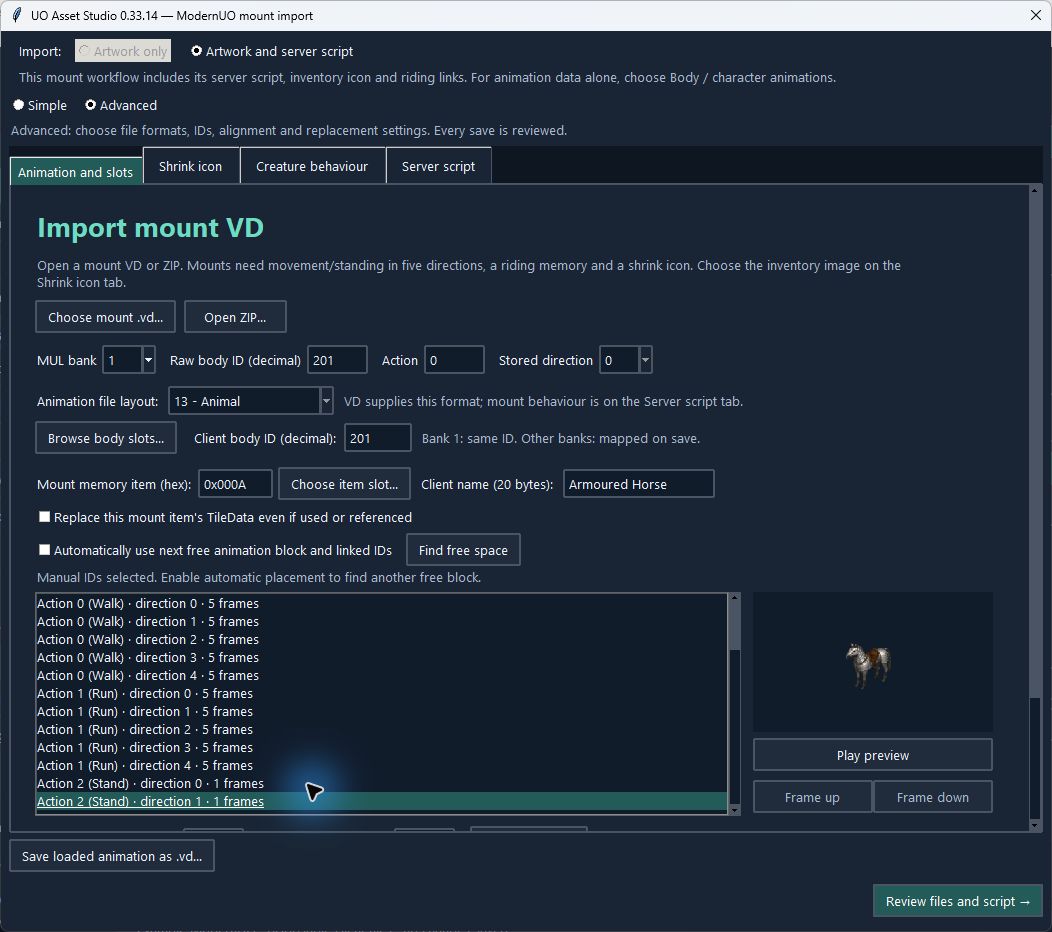
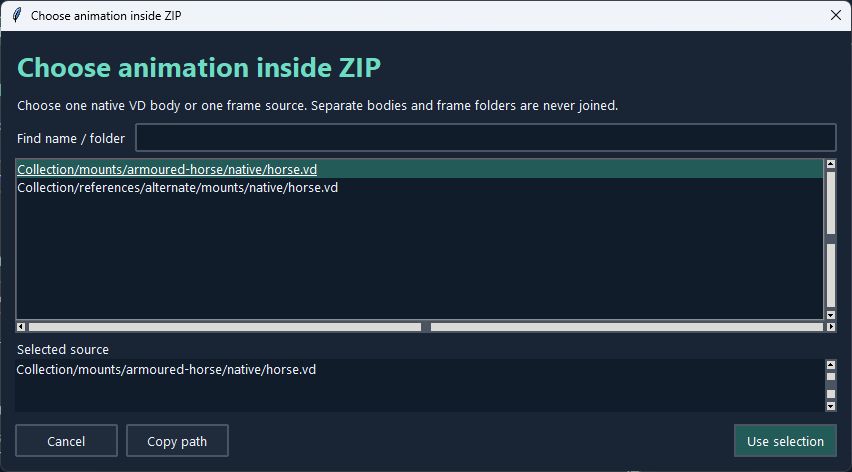
Mounts: Import Mounts → Open ZIP, choose the native .vd body by its full package path, then choose the inventory icon and required riding links. Mount ZIP choices show native VD bodies; GIF or PNG artwork is not silently treated as a complete mount. The source chooser offers Find name / folder; incomplete equipment rows remain visible and unavailable. Compatible VDs and GIFs can be found in any archive folder. PNG/BMP images in every folder are offered as separate frame groups, including preview/reference folders. When a group contains matching PNG and BMP names, PNG is preferred. Choose each group explicitly; unrelated folders are never combined automatically.
Progress: reading, allocation, review preparation, source folders and visible thumbnails show loading status and elapsed time. Known work uses actual completed/total counts. Final current-file checks return to an animated phase. Cancelling a read discards its result and retains current input; the existing reviewed save and recovery process still has no cancellation midway through committing files.
ModernUO remains a preview generation target. C# source browsing stays read-only; C# graphic-reference analysis is unsupported. Representative generated classes compiled against actual server/content assemblies and native serialization generation; this is not a full server rebuild or gameplay test. Compile and test the generated source, equipment and riding on the receiving shard.
NEW IN 0.33.13 / PROFILES AND IMPORT OUTPUT
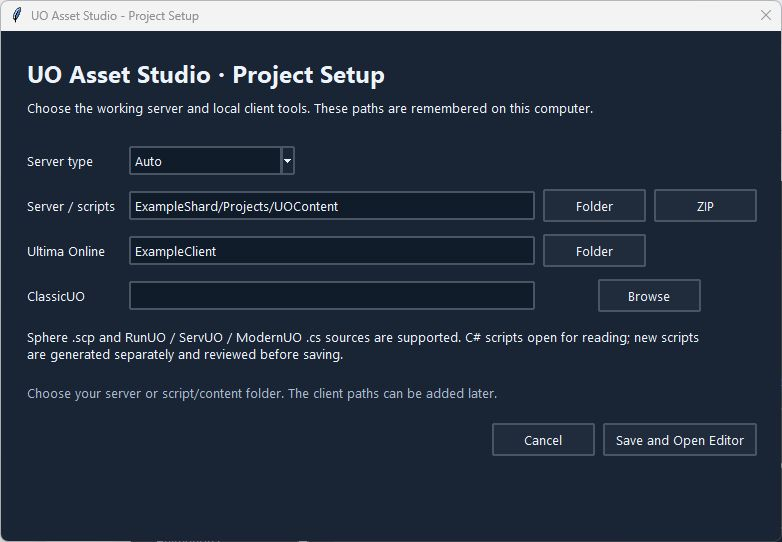
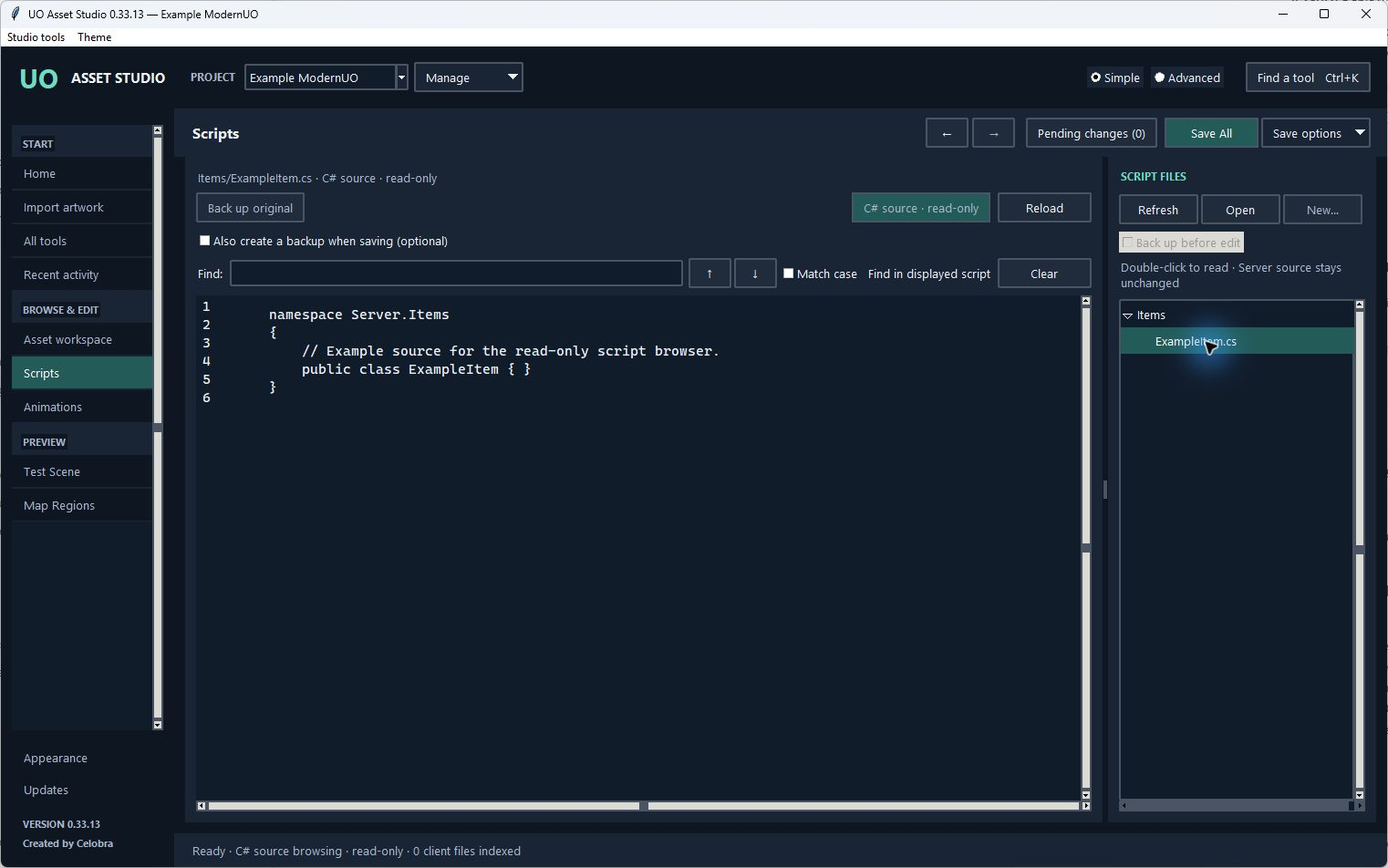
Choose Sphere, RunUO, ServUO or ModernUO in Project Setup. Server roots, Scripts directories, ModernUO UOContent projects and supported source ZIPs are recognised. C# files appear in Script files for reading; Sphere definitions and editing retain their own workflow.
Select the actual family if Auto cannot identify a C# fork. Switching profiles resets the new-script target and export folder. Source ZIPs can be browsed; choose extracted source or a separate export folder for new generated files.
Artwork only is visible above the import tabs in Simple and Advanced. It prepares native item/effect/body changes without .scp or .cs files, Sphere resource registration or body remapping. Artwork and server script opens target-specific choices. For raw mount VD data use Body / character animations; complete mount and equipment workflows still include their required definitions and links.
C# code is not parsed as Sphere definitions or interpreted for graphic references. Native assets, client mappings and queued reservations remain checked; verify any IDs used only by C# code. Compile and test generated source on the receiving server. ModernUO generation remains a preview.
NEW IN 0.33.6 / YOUR COMPLETED WORK
Choose Recent activity in the sidebar in Simple or Advanced. The newest completed imports, script saves, exports, recoveries and workshop saves appear first across your projects, with their time, task and project.
Select a row to read its details and affected files. Search narrows the displayed list, Refresh rereads it, and Open affected folder opens an available folder for the selected action.
History begins collecting after this upgrade and survives restarting Studio. Previews, cancelled choices, failed operations and changes that are only queued do not count as completed imports. The list stays on this computer and does not upload your activity to this website.
Activity is a record of completed work; use the save and recovery tools to restore files.
Read the workspace chapter →NEW IN 0.33.6 / WORLD GENERATOR
Open World Generator and choose Temperate Mainland, Island Adventures, Frozen Highlands, Dry Frontier or Volcanic Wilderness. Presets retain your map dimensions, map number and seed. Simple and Advanced retain every setting while changing which controls are visible.
Generate world shows the current phase, elapsed time, completed phases and bounded live pictures. Cancelling leaves the last completed candidate available.
Keep this world retains one candidate in memory. Another world changes the seed and generates in one action. Restore kept returns to the retained result; Compare worlds compares it or the previous bounded overview at the same tile scale.
World setups ▾ groups Open setup…, Save setup…, Save favourite… and Favourites / recent…. Save a setup or favourite before closing to retain its settings, painted regions and embedded templates.
Reroll chosen part varies land/climate, water, destinations/paths, scenery or dungeons/caves. Hover explains dependent stages: water rebuilds affected banks, plots and routes; scenery changes retain native terrain. Biome painting queues strokes for Undo, Redo and Apply regions, with protected coasts, routes, water and crater cores.
Rules 4 add ridge chains and passes, catchment tributaries and widening rivers, irregular lakes, water-influenced vegetation, dry named Start/Village/Harbour/Ruins/Camp plots and their connecting routes. Themes include Classic UO, Lush, Sparse and Ruined; interiors include Classic, Varied, Crypt, Ruins and Winding caves.
Under Buildings from your stamps, choose Auto or a named destination for the next stamp, then Add stamp… and Generate world. Validated House Builder components are embedded and placed on compatible flat, dry plots using available artwork and safe heights. Remove and add a stamp again to change its target. Adding a stamp to a legacy setup selects rules 4 and requests four plots when its destination count was zero.
Explore world…, Generation stages…, Check details and Terrain review help inspect the completed candidate. Keep generation pictures retains bounded stage pictures. Native movement and transition views identify inspection locations; movement uses the linked client's TileData and a bounded one-level approximation.
Water stays at Z=0. Existing engine 1–3 setups use maintained legacy rules; they do not automatically adopt rules 4. Export creates a separate map folder, and changed settings or source/template data require a fresh valid preparation. Named plots do not create NPCs, guard regions or housing ownership. Test routes, buildings, entrance/return links and server behavior on the receiving client and shard.
Read the world-generation chapter →NEW IN 0.33.5 / FILES AND FOLDERS
Open the Server script controls in an Item, Effect, Monster, Mount, Clothing or Weapon import, or use Generate server script. The existing-art Add item workflow uses the same choices.
With Sphere selected, Save script → New script is the default. Choose Folder and keep the suggested filename in Simple, or edit New script filename in Advanced. Existing new-file names are reported before saving.
Choose Add to existing script, then Browse beside Existing script to select a .scp inside the active server's scripts folder. The new definitions and required generated helpers are added while the original definitions and comments are retained.
New folder prepares a subfolder beneath the selected Folder. Check its proposed destination. The directory is created only by the reviewed save; browsing, cancelling a chooser and preparing an import do not write server folders.
Inspect the exact path and complete resulting .scp before Save or Queue changes. Existing encoding and line endings are retained. New sections go before one final EOF; required resource registration is included.
Duplicate definition/helper names and changed sources are reported. Multiple queued appends to one file combine in one reviewed save, with session restoration and exact original-file recovery.
In Complete armor set, adding to an existing script selects One file for whole set. Each piece keeps its own wearable identifier, layer, artwork and effects.
RunUO, ServUO and ModernUO use New script and new separate .cs files. New folder remains available for their selected server/export destination; existing C# classes are not appended.
Content packs reject existing-script appends so the bundle does not include unrelated old definitions. Choose New script for portable generated-script bundles. A UOFiddler import-kit export remains a separate artwork package.
Read chapter 10 of the complete guide → · Check content-pack distribution →
NEW IN 0.33.4 / SPHERE SCRIPT LAYOUT
Open All tools → Complete armor set. Load its ZIP or extracted folder, select the intended set and Add whole set, or add your pieces individually. Check every piece's icon, equipment animation, male/female paperdolls, layer and identifier.
With Script target for entire set set to Sphere, keep One file per piece for the existing separate .scp destinations. This remains the default.
Choose One file for whole set to combine the set's definitions and required generated helpers in one new .scp. Set its shared script folder and filename. For example, armor_example_set.scp can hold all eight independently wearable definitions in an eight-piece set.
Review complete set displays the selected layout, exact destination paths and complete source. Choose a new filename; an existing destination is reported before saving. Save or Queue changes uses the same reviewed operation, including Sphere resource registration.
The file choice changes script organisation. Each piece keeps its own identifier, layer, native appearance and effects. It does not turn the set into a single wearable item, move existing scripts or remove older files.
RunUO, ServUO and ModernUO retain separate .cs files per piece. Check the complete equipped appearance, movement, mounted poses and server gameplay on the receiving setup.
NEW IN 0.33.3 / DIRECT ZIP SOURCES
For a whole armor set or collection, open All tools → Complete armor set → Open ZIP. Check the detected set names and piece counts, select the intended set, then Add whole set. For one wearable piece, use Clothing or weapon → Open piece ZIP; it needs its icon, equipment VD and male/female paperdolls.
For body animation, use Open ZIP. Packaged native VDs are offered when present; otherwise choose one GIF or same-folder PNG/BMP frame sequence. Mount Open ZIP requires a native VD. If several sources are offered, select the intended one. Studio does not combine unrelated groups.
Use Animation workshop → Open sequence ZIP for a frames.json sequence so its action, stored direction and origins are retained. Convert body ZIP to .vd and Reimport body ZIP discover supported body.json or Action/Direction exports, including wrappers. Choose the intended body when several are found. Mirrored display exports are kept separate from stored directions.
Keep the downloaded layout together. Animation choices skip preview/reference folders and prefer PNG over a same-stem BMP alternative. Native VD imports preserve their supplied actions, facings, palettes and origins. A frame sequence supplies its selected action/facing; missing movements are not created.
In the mount importer, Choose image from ZIP lets you select its shrink icon explicitly. Check the icon preview, animation coverage and riding setup as usual.
Opening a ZIP prepares its sources without saving client or server files. Armor uses Review complete set; other importers retain their usual native-format, free-destination, preview and reviewed-save checks. Package source IDs remain references.
Already extracted downloads still use their existing folder routes. A whole-suit VD cannot be split automatically. Check icons, male/female paperdolls, movement and mounted poses in the receiving client.
FIXED IN 0.33.2 / WEBSITE ARMOR FOLDERS
Use Complete armor set → Open ZIP to open the archive directly. To use the extracted-folder alternative below, keep its manifest.json, piece folders, equipment VDs and artwork together. You do not need to rearrange the files or select every piece folder.
Open All tools → Complete armor set, then Open set / collection folder. Choose the outer extracted folder containing the piece subfolders and manifest.json, such as armor-collection-example-set.
Studio recognises the website's per-set pieces entries with a folder and layer, items entries with files and layer, and existing sets collections. Parent collections and extraction wrappers can reveal their contained sets. If your download is nested unusually deeply, choose the inner extracted set folder.
Check the detected name and piece count. If multiple sets are listed, choose the intended one, then Add whole set. Studio loads each piece's inventory icon, equipment VD and male/female paperdolls. Missing or ambiguous source assets are reported before adding the set.
Edit the resulting rows when needed, then choose Review complete set. Studio proposes fresh destinations for your client; the source IDs in a download remain references. Opening a folder does not write game files. A duplicate layer already in the form must be removed or edited before adding another piece for that layer.
A whole-suit VD cannot be split automatically. Check the separate pieces together in the receiving client: backpack icons, male/female paperdolls, walking, running, mounted poses and relevant attacks.
NEW IN 0.33.1 / ANIMATED ITEMS AND SPELL EFFECTS
Open Import Animation on Home, Import artwork or the Animations viewer. Choose Animated items for moving objects, Spell / visual effects for effect artwork, Body / character animations for native body sequences or Mounts / rideable objects for the mount workflow. Animated items and Spell / visual effects also have direct entries in All tools.
Choose a GIF, ordered PNG/BMP frames, a frame folder or ZIP. The animated-item option starts enabled and retains its setting for folder/ZIP loads. Source filters skip preview folders and prefer PNG over a matching BMP alternative. Inspect frame order and native colour conversion, then use Play frames to check the sequence.
Native item animation uses up to 64 consecutive artwork frames with TileData and AnimData. Set its Frame interval in client ticks; GIF frame delays do not automatically become native timing. Keep Simple for supported free-slot defaults or choose Advanced for manual destinations and alignment.
On Server script, enable script generation only when wanted, then inspect the selected target, name and generated source. An effect function plays a visual on a character or at a location. It does not automatically add spell damage, targeting, cooldowns or combat rules. Add those server behaviours deliberately and test them on the receiving shard.
Choose Review files and script and inspect the proposed IDs and destinations. To prepare a portable item/effect pack, choose Queue changes. Include native art, TileData and AnimData together and any supported linked Sphere script changes or other required resources deliberately.
Open Content packs and choose Export pending bundle before saving or clearing that queue. Save the .uoasset outside your working game files. It is a ZIP container for the supported native changes. Export does not install them; you can save the same queue afterward for your local installation.
Recipients open the pack in Content packs, review destination remapping, preserve consecutive frame offsets and use the normal queue/save review. Already-saved changes cannot be reconstructed automatically by Export pending bundle. C# scripts are shared separately with their matching client IDs; Sphere pack remapping does not rewrite them.
A native .vd carries body-animation sequences. It does not carry animated item artwork or AnimData. Use the body converter or whole-body export for body data. For item/effect distribution, use the reviewed .uoasset bundle and a recipient guide, then test the target client and server.
NEW IN 0.33.0 / EDIT, BUILD AND CHECK
Use the artwork picker for native client gumps. Select controls in Layers to reorder, hide, lock, duplicate or align them; use snapping and complete Undo/Redo for layout and property changes. A drag is one undo step. Native artwork keeps its fixed size; tiled backgrounds and input areas retain their own sizing controls.
Choose Test / Interact to try page buttons, entries, checkboxes and radio groups. Reply buttons report their IDs, entered values and checked switch IDs across pages. This is a local test: it does not run Sphere handlers or reproduce the receiving client's text metrics.
Select an item in Workspace and choose Edit artwork, or use Edit in graphics editor from its context menu. For a gump, use Edit original artwork. Choose an installed editor and open the separate PNG copy. Save back to that same file and leave its sidecar metadata unchanged.
The returned image appears in the preview automatically. Choose Review edited image, compare the UO colour conversion and use the normal Save or Queue controls. Replacement keeps the same asset ID and its existing links and properties. This workflow edits an individual item or gump image; it does not install changes automatically or exchange a layered animation project.
Animations and Test Scene use bounded caches for decoded and prepared previews. Repeated inspection can reuse the same source; source changes invalidate that preview. Native animation import, whole-body VD export and the existing format checks remain available.
House Builder can read optional client building tables for walls, doors, floors, roofs and stairs. Choose a kind and style to find its pieces. Direction and corner labels are used where the tables supply them; other pieces retain their numbered variants. Use All pieces or your custom palette when tables are missing.
Select an assembly, open Stamps, choose Save selected and name it. Use Place stamp, position its ghost preview and click to place it in one undo step. Import and Export share artwork IDs, relative positions and roles in a .house-stamp.json file. The library is scoped to your active project beside Studio settings. Matching artwork must be shared separately; unavailable artwork blocks placement.
Check building opens the Selection panel's Problems list. Select a finding to inspect its location or piece; general findings may have no piece target. Optional automatic checking waits briefly after design changes and clears stale findings. Compile review and the local walk test remain available; these checks do not simulate server housing rules.
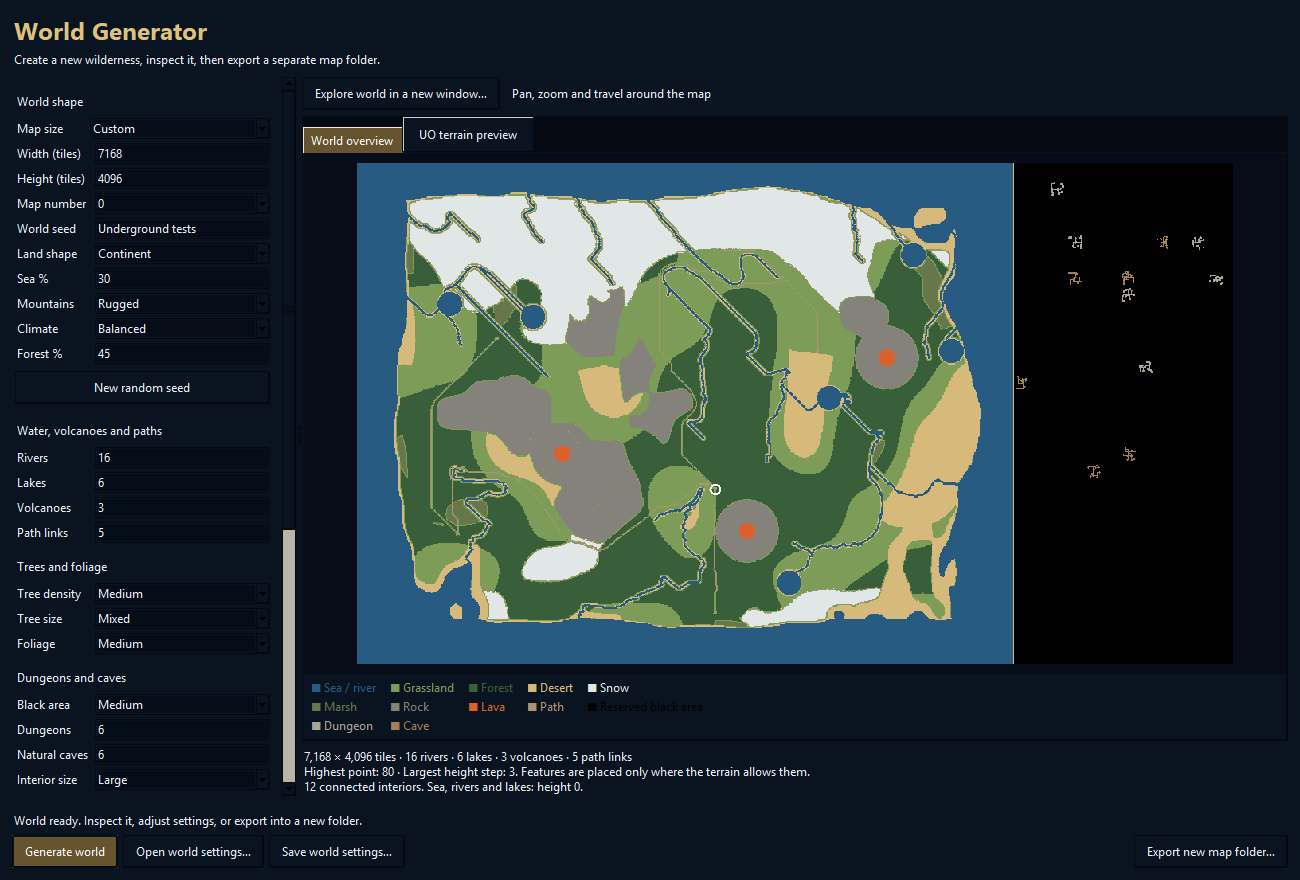
Before generating a world, leave Keep small generation pictures checked. After completion, choose View generation stages to compare land/climate, mountains/volcanoes, rivers/lakes, paths/biome edits and the final native overview. Connected interiors appear when present. Previous, Next and the phase selector change only the displayed picture.
The pictures are a bounded record of the last completed generation. Clear the option before the next generation to omit them. Settings changes still require a fresh generation before exporting; warnings remain visible.
Open Check game files → Tool readiness to see which workflows have their required checked files. Missing and damaged files are distinguished, and valid alternative MUL/UOP sources are identified. File details retains the complete audit and exportable report.
Readiness checks native file structure. It does not guarantee that every contained image, animation action or server definition is usable. Check gump text and hues, edited art, generated scripts, houses and worlds on the receiving client and shard.
NEW IN 0.32.5 / START WITH YOUR ARTWORK
Home offers Import Tiles, Import Statics, Import Gumps, Import Animation and Import Mounts. The same choices are on the Import artwork sidebar page in both Simple and Advanced. Each named button opens its matching workflow; Import Animation first lets you choose its content type.
Choose the source, inspect the preview and review the affected files before saving. Link a working client when an import asks for it. Tiles imports static item artwork; native map terrain remains a separate format.
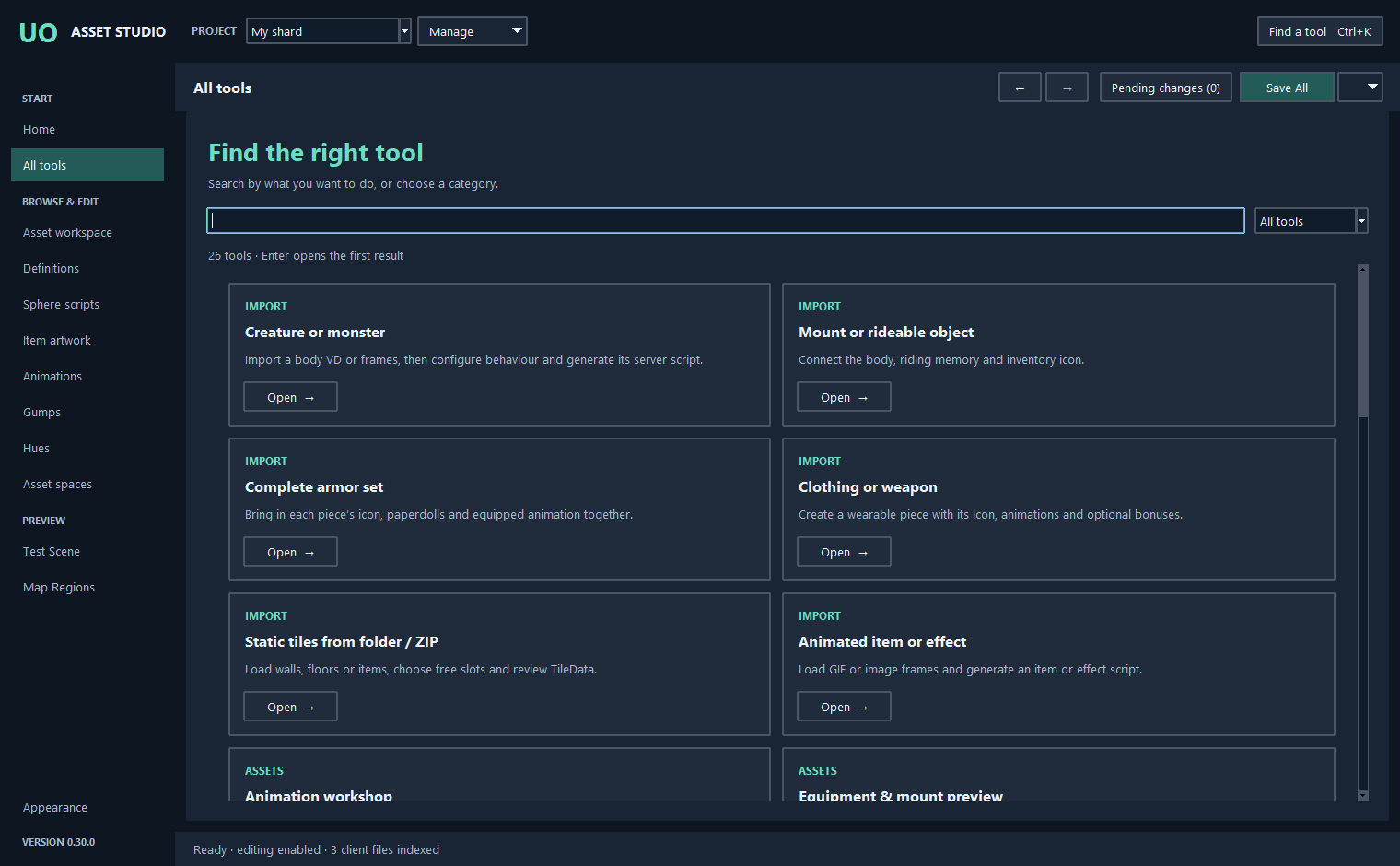
All tools shows 35 tools in five visible groups:
Search by task, name or keyword, use the category filter, or press Enter to open the first matching result. Press Ctrl+K from the workspace to open the library.
Creature, armor, clothing and effect imports remain available. Standalone animation-to-VD conversion still writes a separate file without installing it, and Save entire body as .vd… still exports the resolved existing body.
Convert an animation to VD → Export an existing body →NEW IN 0.32.1 / A COMPLETE BODY EXPORT
For example, body 1653, the Fire Elemental Horse, can be supplied by UOP archives even when the same physical ID is empty in every MUL bank. Auto follows the source; More export options… opens the separate bulk exporter.
Native MUL exports retain the complete 13-, 22- or 35-action table, original payloads, palettes, frame origins and index extra values. Five stored facings provide eight display directions through native mirroring.
The converter now reads the same last valid recognized mobtypes.txt definition as the viewer. An older duplicate equipment entry no longer blocks a later Animal entry, including body 1729. It also supports the additional Animal 0x2000 flag used by body 1638.
Supported UOP ANIMAL bodies use their AnimationSequence mode/action tables for the ordinary 13-action Animal VD. A collision-free complete ZIP also includes a separate riding 13-action VD when an available riding mode exists, archival 35-action-layout VDs for every original physical group, mapping JSON and a public README.
The archival VDs are preservation containers, not ordinary Animal imports. Keep them with the mapping information for deliberate recovery or remapping. Representable source RGB555 colours, transparency and origins are retained.
A generic source fidget may be reused for native Eat/Fidget slots; no distinct eating animation is generated. A second death slot reuses the first pose only when the source table explicitly aliases it to that same pose. Absent native slots 4 and 11 remain empty. Physical groups alone do not establish a riding mode. UOP conversion requires visible frames in all five stored facings of every source group and stops before saving if one is blank. Native MUL source gaps are retained and reported; unsupported UOP layouts also stop with an explicit explanation.
No files exported means a bulk scan created reports only. Its reason identifies the selected body range/source and suggests checking Auto for aliases or UOP. A VD-only success can have zero PNG frames while its VD count is positive.
Animation files do not include server definitions, sounds, icons or riding-memory setup. Include those separately when needed and check the imported body in the receiving client/server.
Read the detailed steps and format limits →NEW IN 0.32 / START HERE
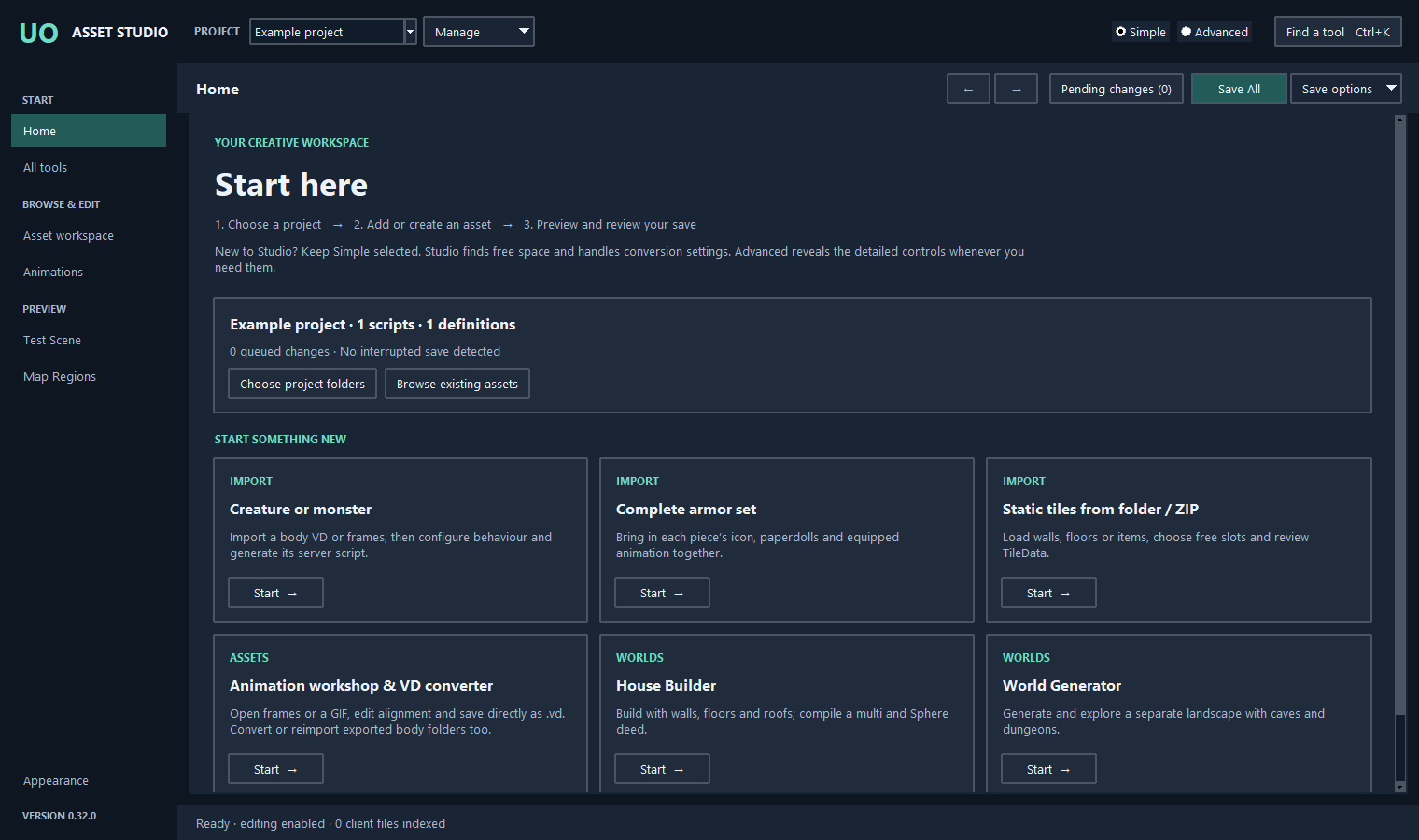
Studio opens on Home before you link any folders. Direct VD conversion reads your source frames and writes a separate file; link client and server folders when you begin an import or script workflow.
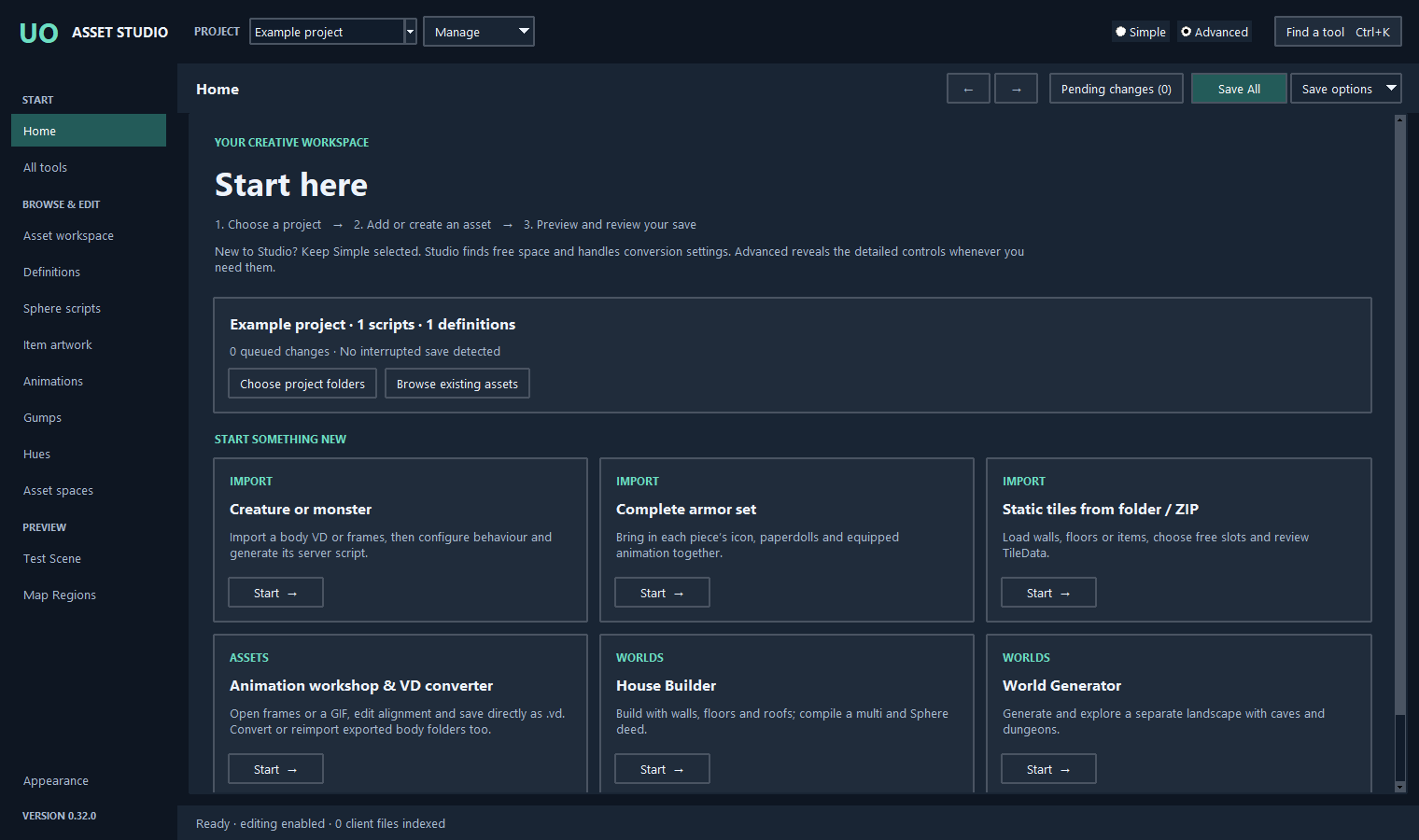
Select Advanced to reveal manual formats, asset IDs, alignment and replacement controls. Switching to Simple preserves your manual values and applies its defaults; returning to Advanced restores those choices.
Simple keeps the sidebar focused and hides optional side panels. Every editor remains accessible through All tools or Ctrl+K. Definitions and Script files panels, specialist editors, queues and recovery remain available.
Hover help explains the action, affected settings and relevant format limits. Review remains part of both modes.
NEW IN 0.32 / ANIMATION TO NATIVE VD
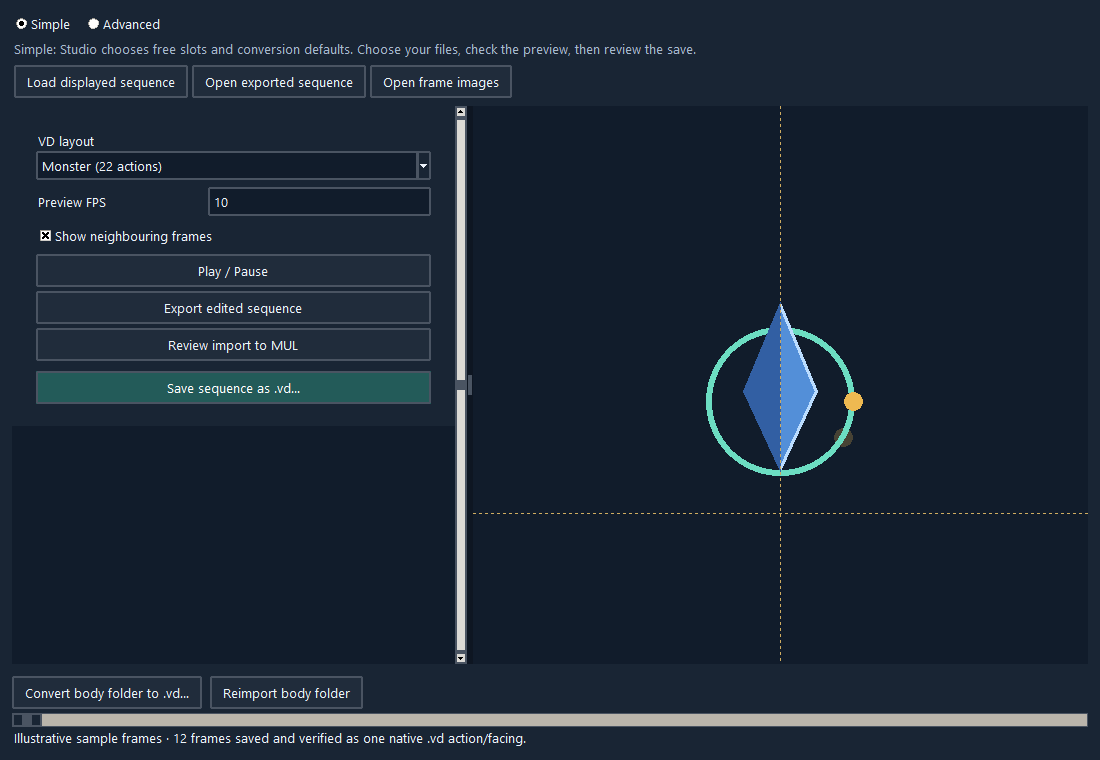
This creates one action and stored facing. Other actions and directions remain empty; a GIF does not supply a complete creature or wearable animation.
Choose Convert body folder to .vd… to combine its supplied stored sequences into one VD. Simple reads the body layout from metadata; Advanced can supply a layout when metadata is missing. Mirrored preview folders are excluded.
Action IDs and ground origins are retained. PNG/GIF inputs are converted to the native palette. Existing VD imports can also be saved directly without installing them; their original sequence payloads retain their palette and origins.
VD conversion writes a separate output and needs no client installation. It does not create missing movement or riding actions, record GIF timing as game timing, or set up server behaviour. Use the complete source action set and test imported content on the receiving client.
NEW IN 0.31 / REUSABLE SCRIPT SETTINGS
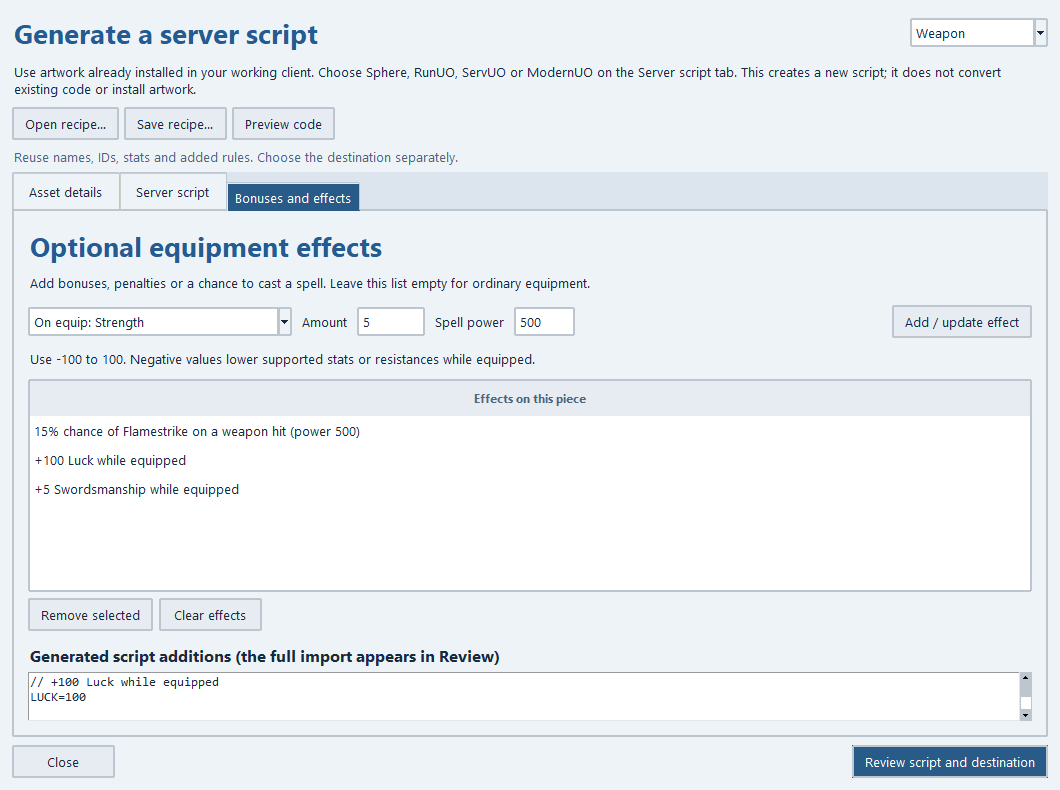
In Generate server script, choose Save recipe to keep the asset type, target, stats, equipment effects and creature settings. Open recipe restores those choices. Recipes contain settings only; each project keeps its own destinations.
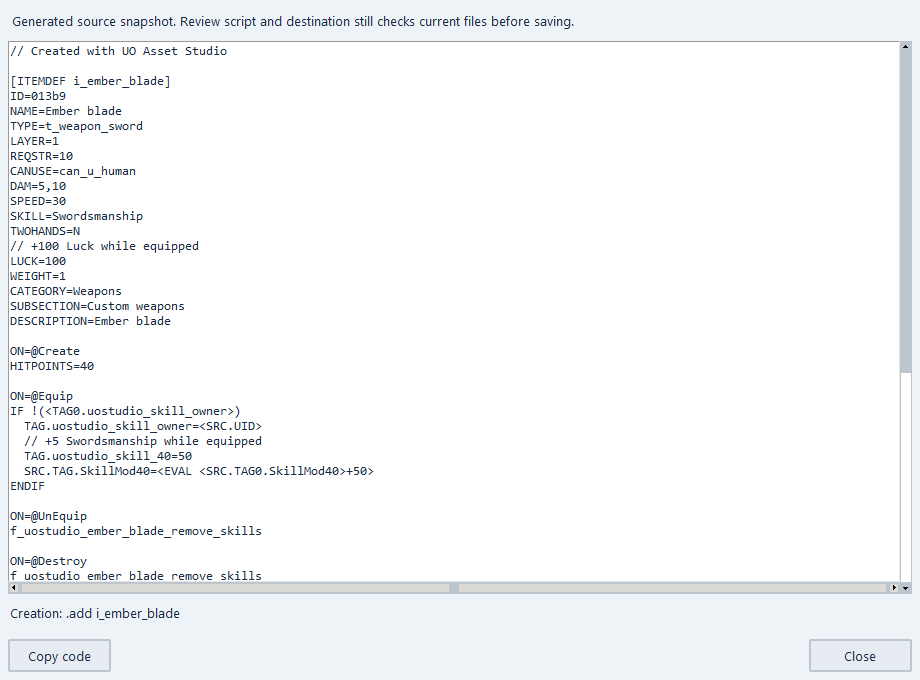
Preview code shows the exact generated source and creation commands before the save review. It supports Sphere, RunUO, ServUO and the ModernUO preview target.
Rideable object mounts: double-click the inventory item in your backpack to ride. Dismount restores the same item. No taming or feeding is involved. Sphere’s temporary backing creature is cleaned up; C# targets use native EtherealMount behaviour.
Existing installed scripts are not automatically converted. Related-content removal recognizes unmodified generated mount helpers and retains protection for external references or customized code.
NEW IN 0.31 / TERRAIN YOU CAN INSPECT
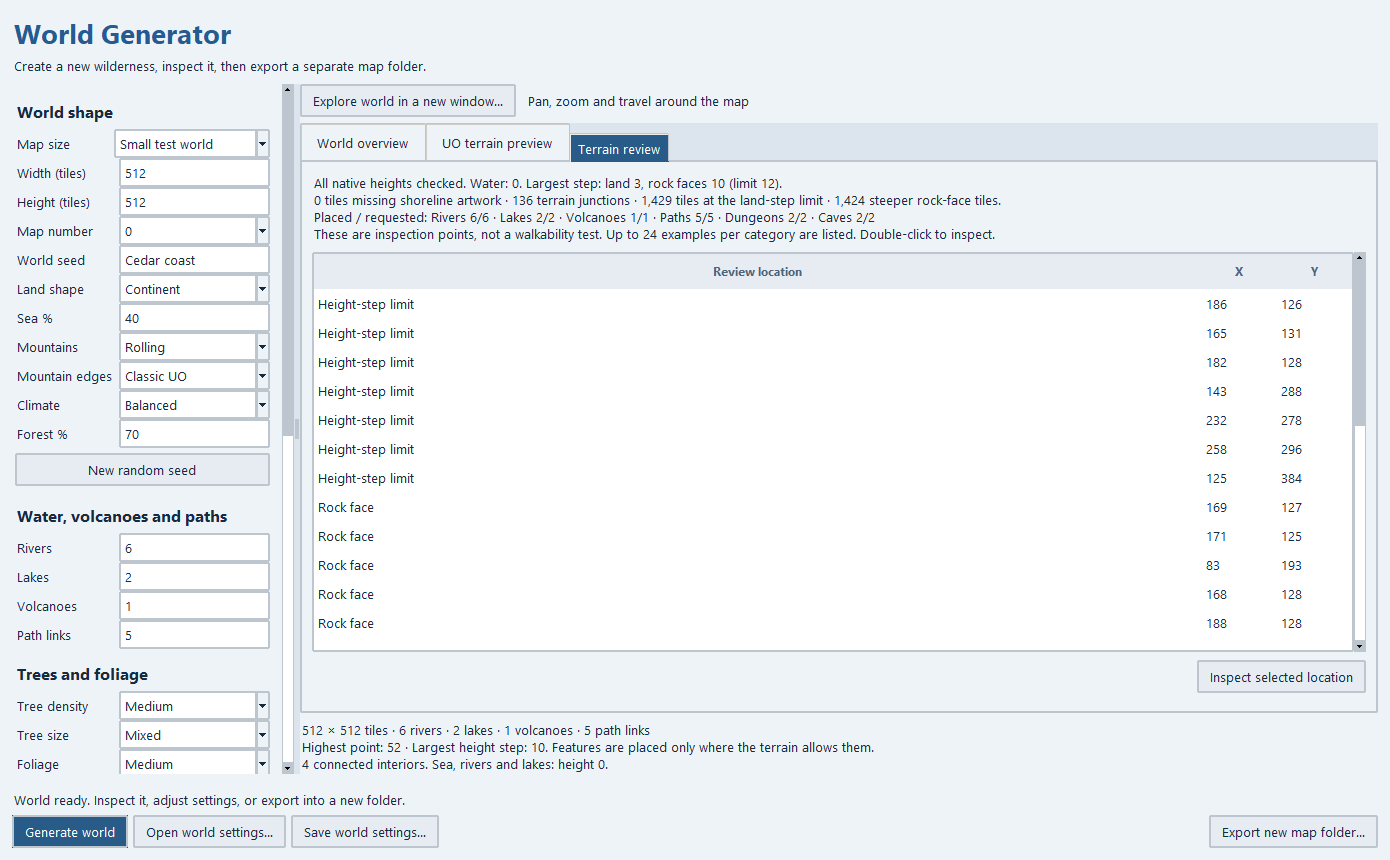
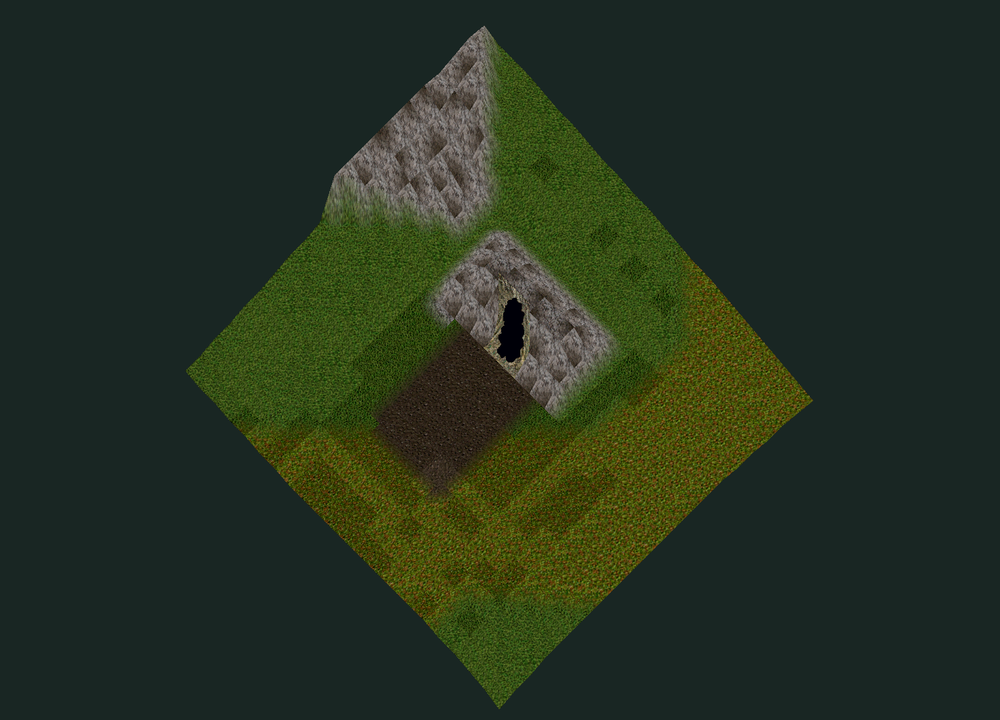
Mountain edges → Classic UO adds bounded rock faces and uneven ridges, while Soft slopes keeps the earlier gentle style. Ordinary ground retains its original slope limits. Seas, rivers and lakes stay level at zero.
Raised ground uses the client’s terrain textures where available. The preview approximates native lighting; inspect the exported world in a separate client/server copy before deployment.
Switch the overview between Biomes, Height, Slope and Shoreline / blends. Terrain review lists counts and inspection coordinates; double-click a row to examine its native artwork.
Paths seek any reachable earlier clearing and avoid diagonal gaps at blocked shores. Native black cave-mouth pieces form the outdoor entrances, with a clear approach and a trigger leading to the separate cave interior.
NEW IN 0.30 / FIND YOUR WORKFLOW
Home offers five named artwork imports plus Animation workshop & VD converter, House Builder, World Generator and Complete armor set. Import artwork keeps the direct imports and other asset imports together in the sidebar. All tools shows 35 tools under visible task headings, including Server scripts; press Ctrl+K to search them or Ctrl+H to return Home.
Definitions and Asset workspace start with the definition browser. Sphere scripts starts with Script files. Other views use the available width, with switches to bring either side panel back when useful.
Save All and Pending changes stay together in the toolbar. Save options groups separate script/game-file saves and recovery. Manage groups profile and path controls.
Appearance provides ten themes, Standard or Larger text and a panel-layout reset. Tile imports separate their larger artwork preview from properties and animation. Existing reviews, queues and recovery remain part of the workflow.
NEW IN 0.30 / SPHERE REGIONS
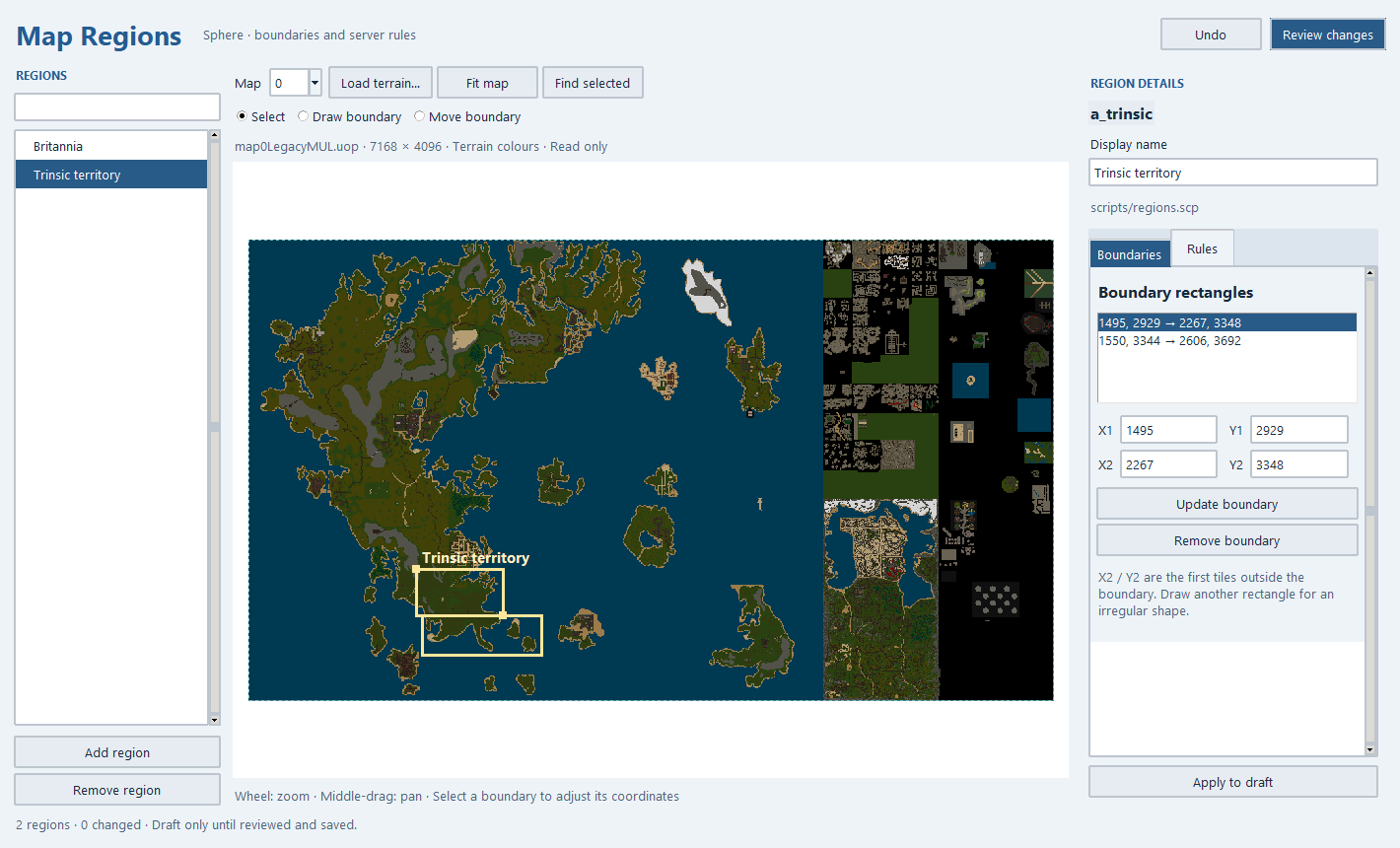
Open Map Regions from the sidebar. Search existing AREADEF and ROOMDEF scripts, select a region on the map, and use Find selected to inspect all of its rectangles. Draw another rectangle for an irregular shape, move a boundary or enter precise coordinates.
The Rules tab covers guarded and safe regions, magic and harmful spells, recall in/out, gates, teleport, PvP, building, weather, announcements, logout and decay. Custom rule expressions stay intact and are marked for script editing when Studio cannot resolve them.
Load a MUL or legacy map UOP for a read-only terrain background. Version 0.30.1 fixes map0LegacyMUL.uop loading and detects standard facet sizes automatically, including both Britannia widths. Custom maps keep manual dimensions; cancelling keeps your existing preview scale. Mouse-wheel zoom and middle-drag pan help place boundaries. The overview does not render statics or simulate server behaviour.
Additions go under scripts/regions and register in spheretables.scp. Changes use the existing queue, file-access checks, conflict detection and backup/recovery flow. Retain a covering world region, stop Sphere before saving and verify rules after restarting.
This editor supports Sphere regions. It does not edit RunUO, ServUO or ModernUO region formats.
SPHERE / RUNUO / SERVUO / MODERNUO PREVIEW
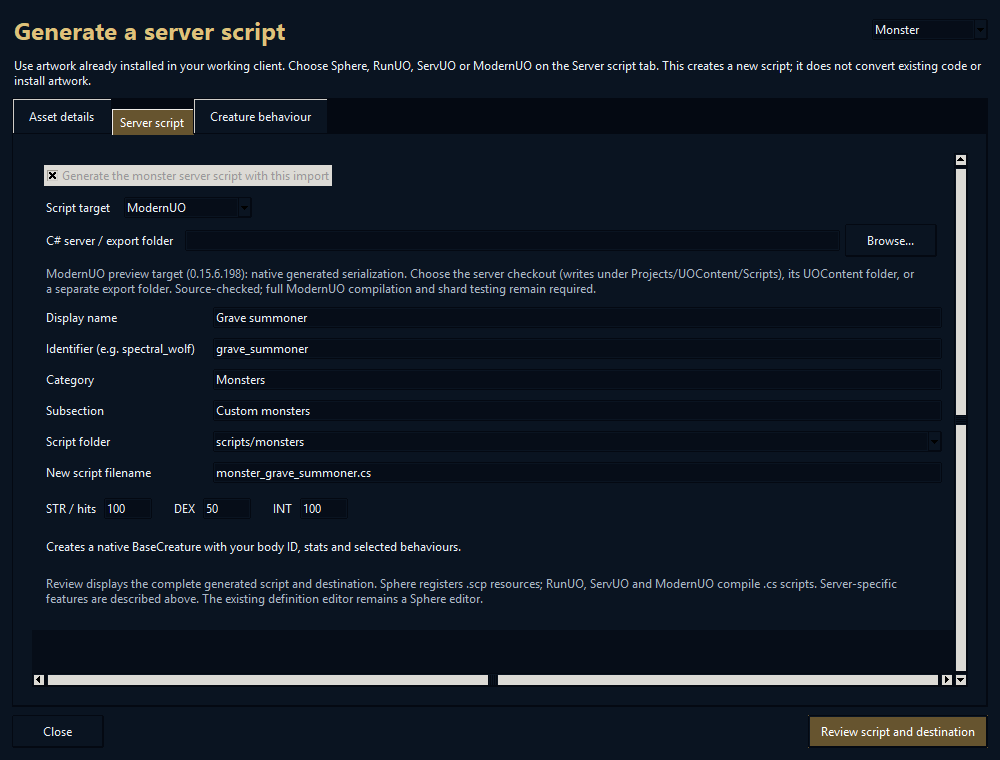
Choose Script target on the Server script tab. Sphere produces .scp definitions; official RunUO 2.x, ServUO pub57 and the ModernUO preview produce C# classes. Complete armor sets share one target, including whole-folder imports.
Configure spells, healing, taming, attack effects and temporary summons, or native equipment bonuses and weapon hit effects. For existing artwork, open Workspace → Workshops → Generate server script.
The C# targets share a language but have different APIs. Review the source, destination and GM creation command before saving.
Targets official ModernUO 0.15.6.198 with Constructible classes and native generated serialization. Choose the server checkout, its UOContent folder or a separate export folder. Studio locates Projects/UOContent/Scripts and checks class names across the content project.
All 61 ModernUO examples passed syntax checks and were compared with the official source. This is not a full ModernUO build: compile the generated source and test it on your shard before use. Preserve the server-generated serialization migrations.
Existing definition editing, sound-link editing, removal, house/deed and world entrance scripts remain Sphere workflows. Arbitrary script conversion and C# content-pack remapping are not included. Test Scene previews visuals; it does not execute server gameplay.
UPDATED IN 0.33.8 / FOLDER AND ZIP IMPORT
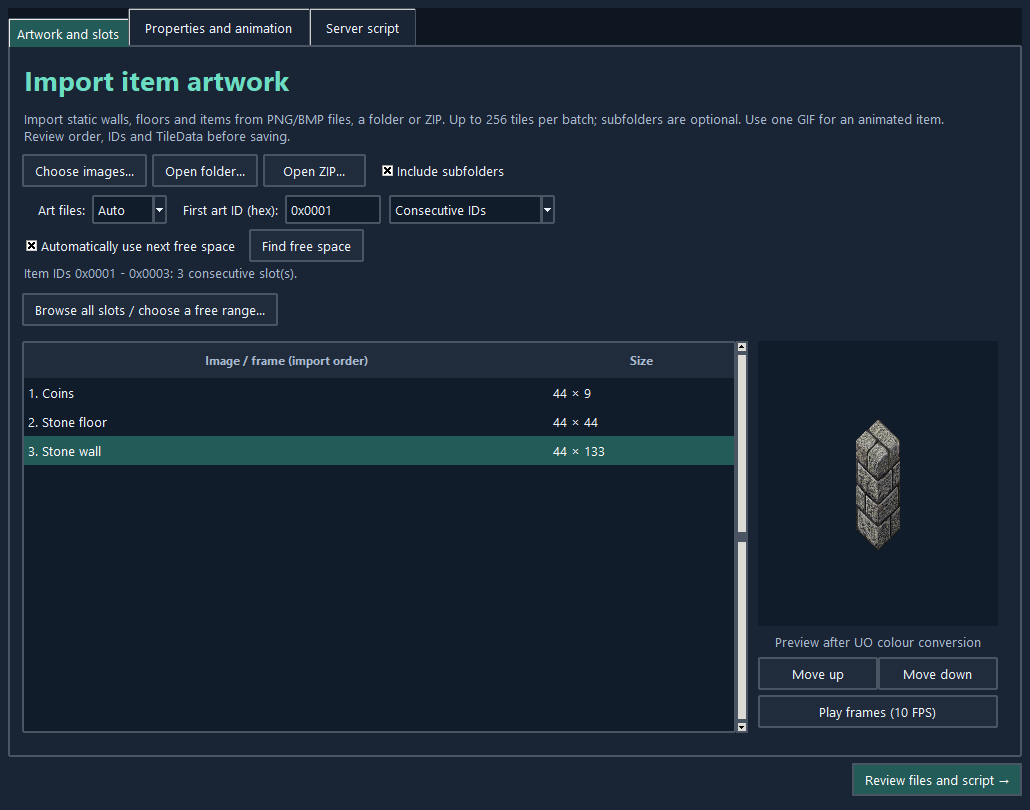
Choose Import Tiles or Import Statics on Home or Import artwork, or open Import Tiles in All tools. Keep Include subfolders enabled for a pack with several artwork folders, then choose Open ZIP or Open folder. ZIPs are read without extraction. Native ground terrain remains a separate format.
By default, subfolders named previews and static filenames with separate preview, previews or contact-sheet tokens are excluded. Oversized overview sheets, corrupt images and artwork that cannot fit native static art are reported and skipped while compatible single-frame PNG/BMP tiles load. Studio keeps their original dimensions; it does not resize images or split sheets into tiles.
Choose View skipped files... to read or copy filenames and reasons in a scrolling report. If no compatible tiles are found, the previous selection remains and the new pack's report is shown. Successful loading can omit unusable images, so inspect the naturally sorted list. Reorder rows or use Remove selected to remove unwanted artwork without deleting files.
PNG is preferred over a matching BMP in the same folder and exact mirrored format folders: png/walls/tile1.png pairs with bmp/walls/tile1.bmp. Each path must have exactly one matching-format directory component at the same depth, with all remaining folders and the filename stem equal. Unrelated paths stay separate. An invalid preferred PNG is reported without silently falling back to BMP.
Advanced reveals Include preview images and Include both PNG and BMP versions. Set these before reopening the folder or ZIP; changing a checkbox does not replace the loaded list. Preview inclusion bypasses role filters, while dimensions and native-format checks still apply. Both formats keeps the alternatives. Choose images retains explicit file selection and its existing validation.
Static folder/ZIP batches support up to 4096 compatible still tiles, each 1–512 pixels per dimension, within 16 million total pixels, 128 MB of input and 16 MB per image file. Direct Choose images keeps its 256-file cap. Resource limits, cancellation, unsafe or duplicate ZIP entries and password protection stop the complete load without replacing the previous selection.
Leave animation off for independent walls, floors and items. Use automatic free-slot placement or deliberately read IDs from filenames; duplicate destination IDs are rejected. Review checks artwork before allocating slots. If an explicitly selected image is rejected, check its filename and dimensions and prepare compatible artwork.
Set names, weight, height and TileData flags. Settings apply to the batch, so import walls and floors separately when they need different collision or surface properties. Collision, ladders and gameplay behaviour are not inferred from a preview or manifest. Choose Review files and script before Queue changes or Save original. MUL/UOP files change through the existing review, backup and recovery steps.
Enable animation before opening its folder or ZIP. An incompatible selected frame stops the load rather than shortening the sequence. Frames named with preview or contact-sheet tokens remain selected; the existing preview-folder and PNG/BMP choices still apply. If a static load excluded preview or incompatible images, reopen it with animation enabled or choose a complete compatible sequence. Native animated statics remain limited to 64 frames.
NEW / MONSTERS AND ANIMAL MOUNTS
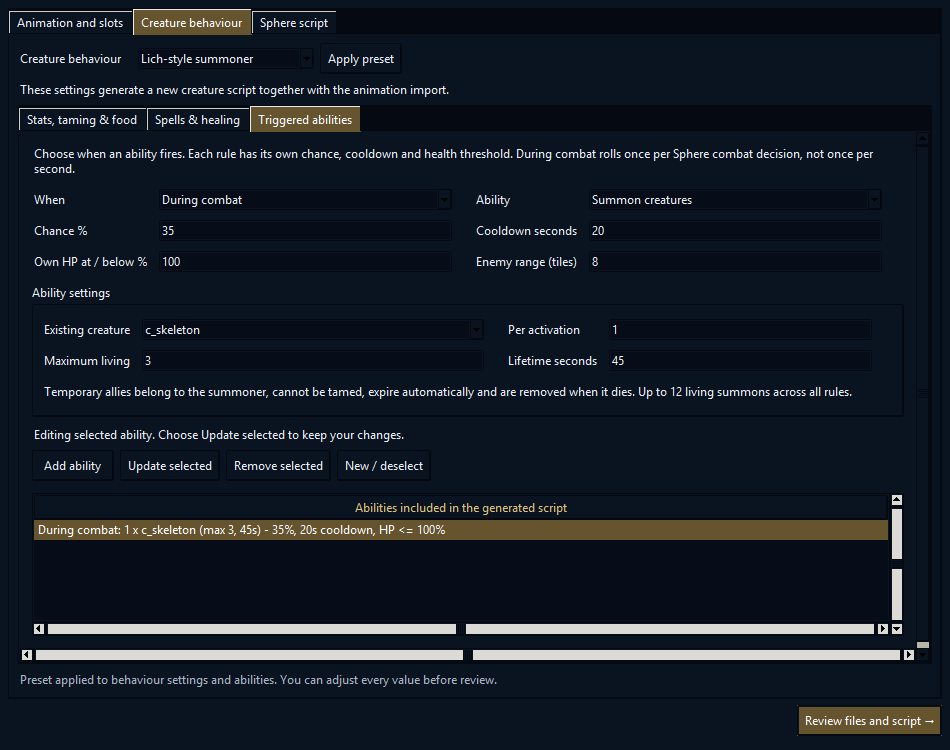
Open Import + script → Monster or Mount → Creature behaviour. Choose Basic melee, Tameable animal, Armored fighter, Spellcaster, Self-healing fighter, Poisonous creature, Dragon-style pet or Lich-style summoner, then adjust the details.
Set combat skills, damage, armor and resistances. Choose whether it can be tamed, its taming requirement, follower slots and diet. Pick its normal spell list, including healing and cure. Rideable objects keep their separate no-taming/no-feeding behaviour.
Add instant spell effects, fixed self-healing, custom attack visuals with optional damage and sound, temporary summons, or a creature-compatible Sphere function. Trigger during combat, on a landed hit or when hurt, with a percentage chance, cooldown, health threshold and range.
Choose the creature to summon, how many appear, the living limit and their lifetime. Summons expire and are removed when their summoner dies or is deleted. Review the complete generated script before saving. Native spell choice and gameplay still need shard testing; Test Scene remains a visual preview.
01 / THE WORKFLOW
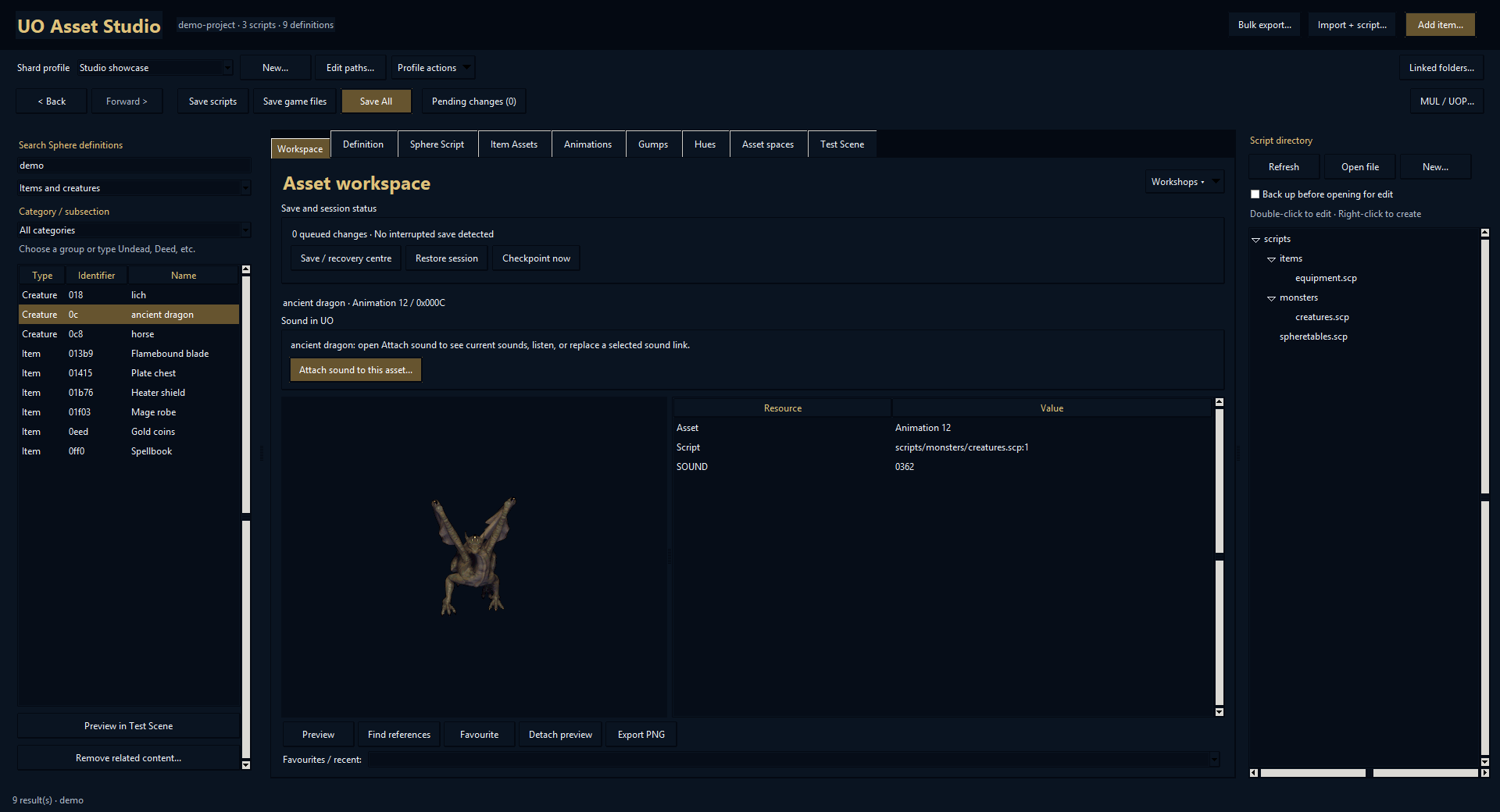
Link a Sphere script folder and UO game-data folder in a shard profile. The definition list, asset preview, references and script directory stay together, so you can move from a creature to its animation or from an item to its artwork.
The Workspace follows the selected asset and gives you access to related resources, sound attachment, favorites, recent assets and the specialist workshops.
Ten themes change the interface colors without recoloring your artwork.
02 / THE WORKFLOW
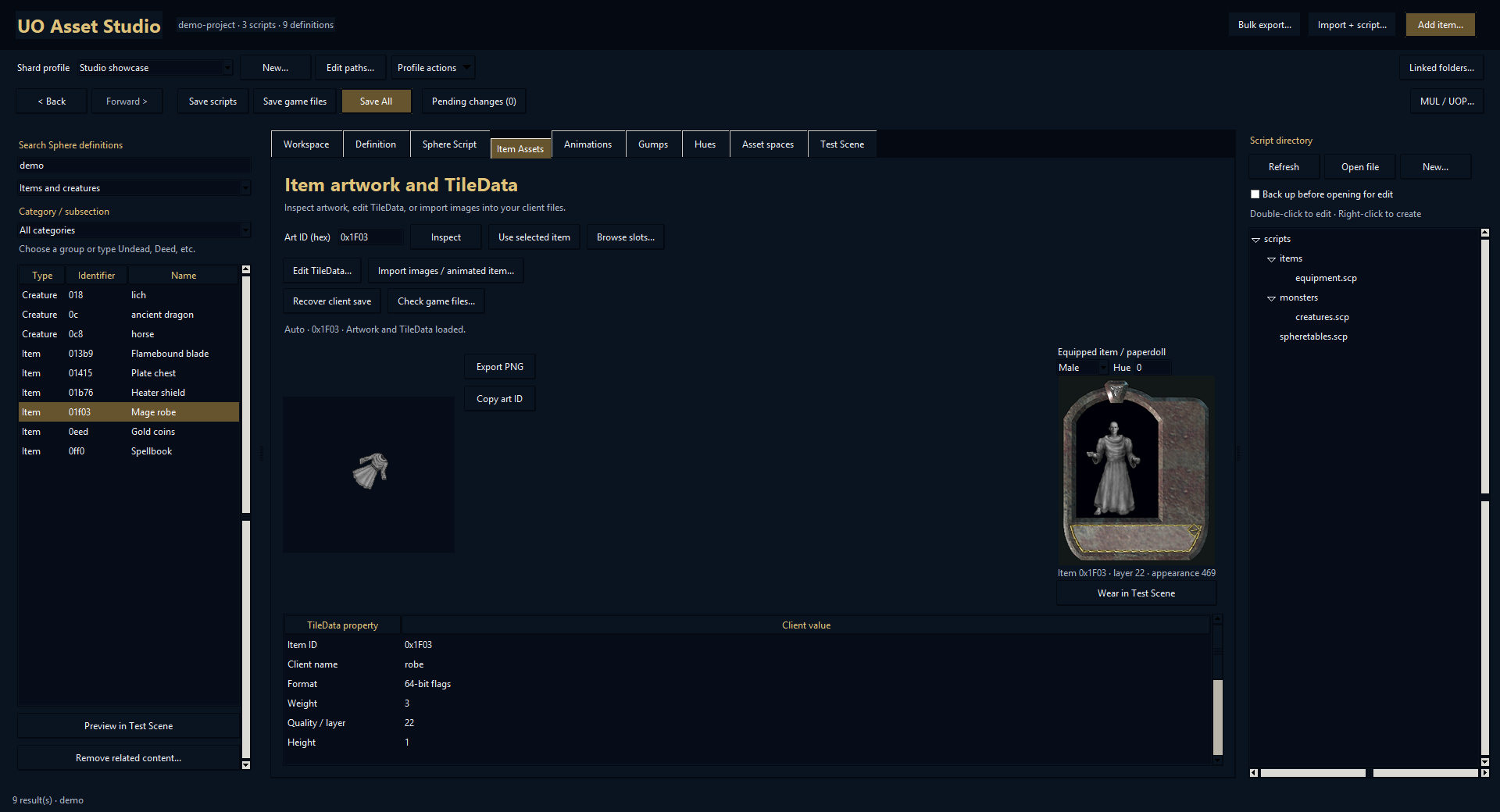
A wearable needs more than the ground icon. The import workflow links the icon, TileData equipment animation ID, a human/equipment VD and male/female paperdoll images. You can import a new appearance or reuse one already in your client data.
Check the 35-action equipment coverage, including movement and riding, and review the applicable weapon attack. The paperdoll viewer and worn-model Test Scene answer different questions: how the piece sits in the character panel, and how it looks in motion.
Choose a prepared set folder in the whole-folder importer to add the pieces together, including their animations, inventory icons and male/female paperdolls. Review the pieces, find available destinations and generate their Sphere, RunUO or ServUO item scripts as part of the same linked change.
Add stat changes, Luck, resistances or a skill bonus. For weapons, choose a spell and hit percentage. Effects can be copied to all set pieces; those bonuses stack per equipped piece rather than waiting for a full set.
03 / THE WORKFLOW
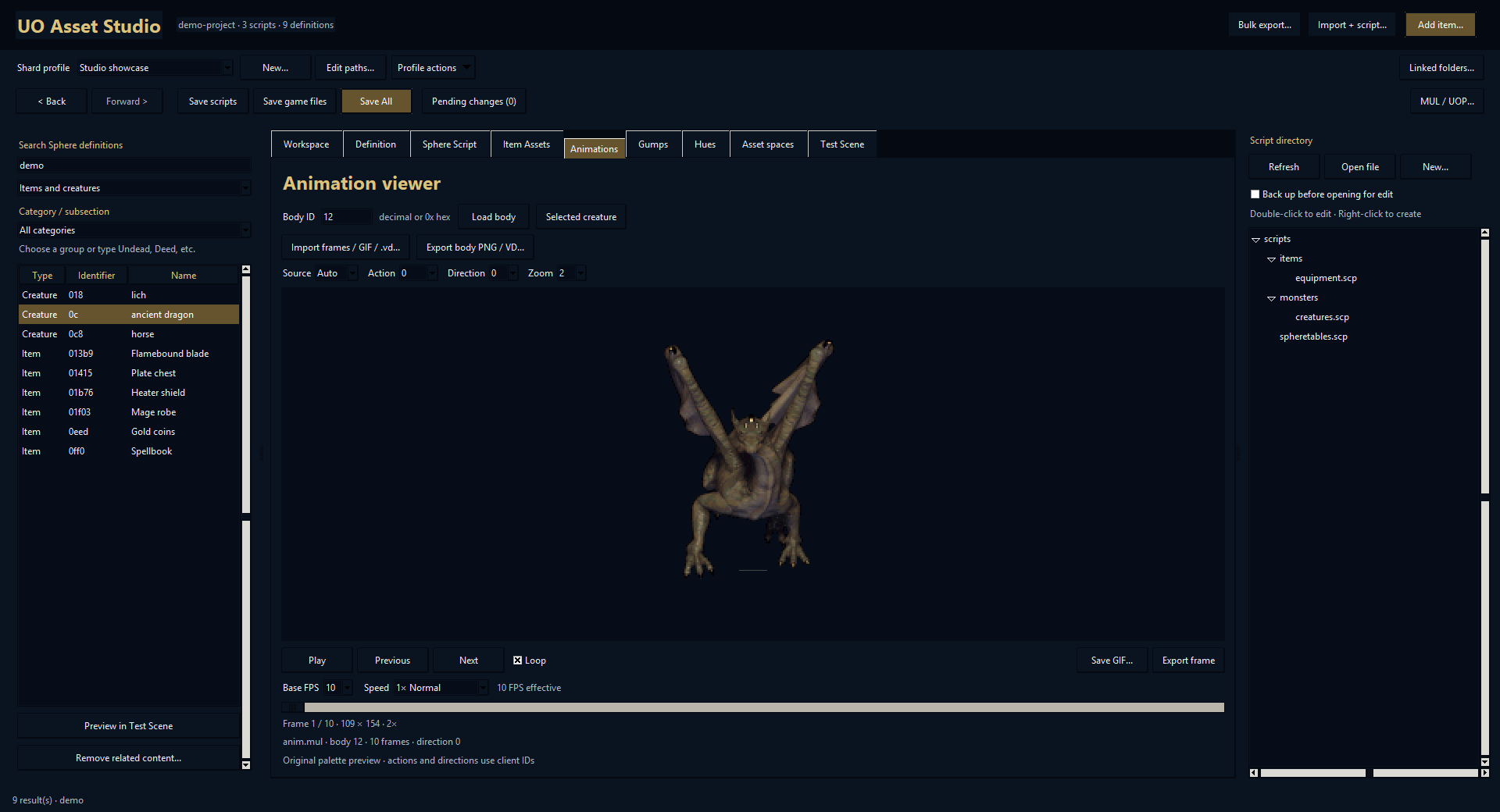
Choose a compatible monster VD, preview its animation and select a destination body. Studio prepares the creature and generates its selected server script for you. Check the action/direction coverage and review the result before saving. Mount preparation also brings the rider relationship and shrink icon into the same workflow.
For vehicles and object-like mounts, choose a rideable object without animal taming or feeding. Preview the rider and adjust the visible relationship in Test Scene.
Add effect artwork or supported animated sequences through a guided importer. Studio prepares the native assets and generates the associated Sphere definition/function or C# item/effect class. Preview the effect, choose available space and review its artwork and script together.
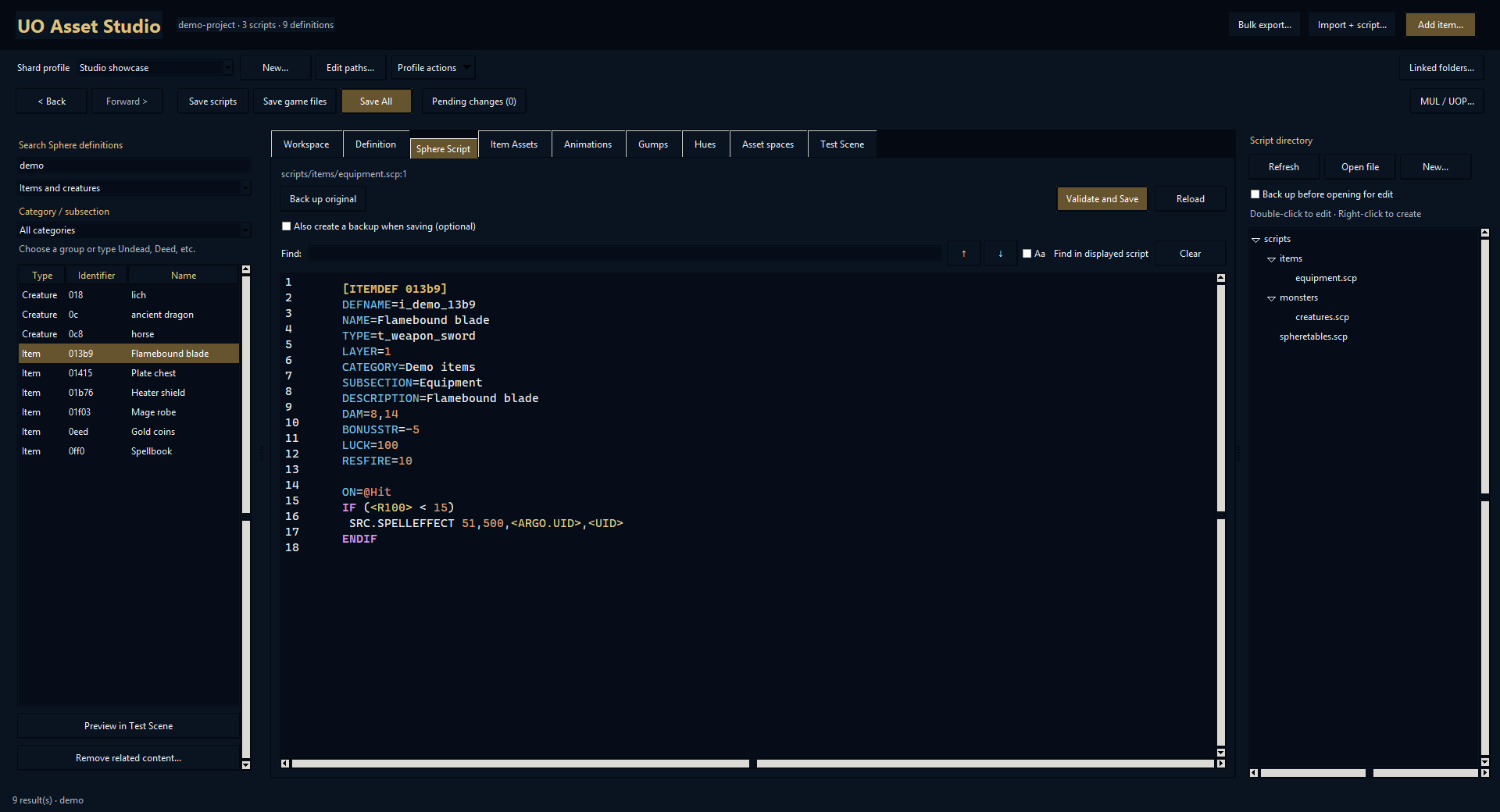
Sphere scripts stay visible. The editor supports source editing, reference lookup and related-content removal with an explicit review of what will be affected. Runtime script behavior still belongs to the server.
04 / THE WORKFLOW
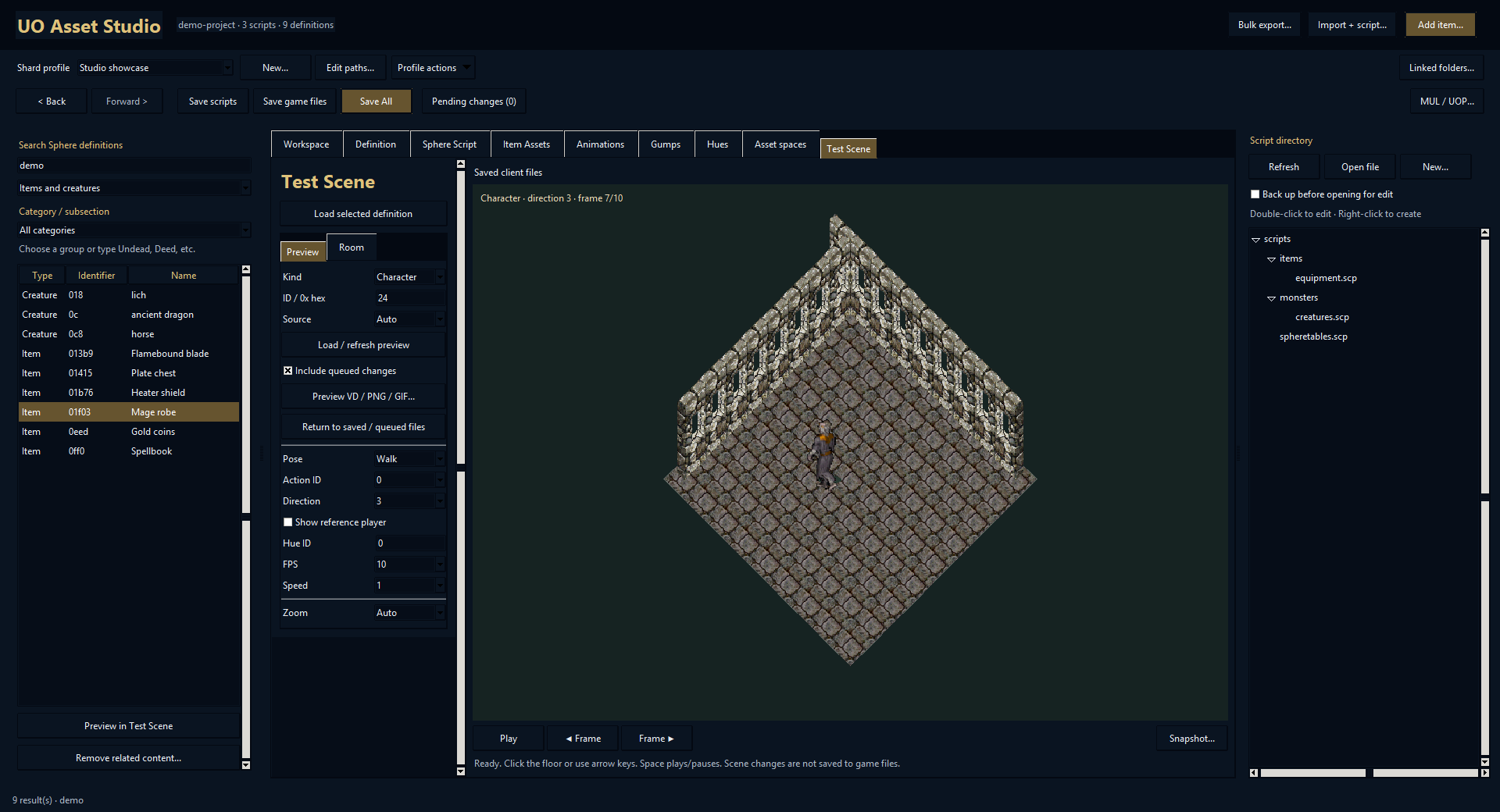
Send a selected definition or an asset from its context menu straight to Test Scene. Load characters, mounts, equipment, effects and items, or preview an external VD, PNG or GIF. Queued changes can be included before saving.
Play or step through frames, choose an action and facing, compare lighting and hue, and inspect a mounted rider. Put selected items into the room without replacing the moving character.
Move around the floor, place test walls and objects, swap floor/wall artwork and take a snapshot. This makes it easier to catch an oversized icon, an unexpected direction or a poor rider position.
This is an in-app visual test environment. It does not execute Sphere combat, AI, skills or spells, and final gameplay still needs checking on the target shard.
05 / THE WORKFLOW
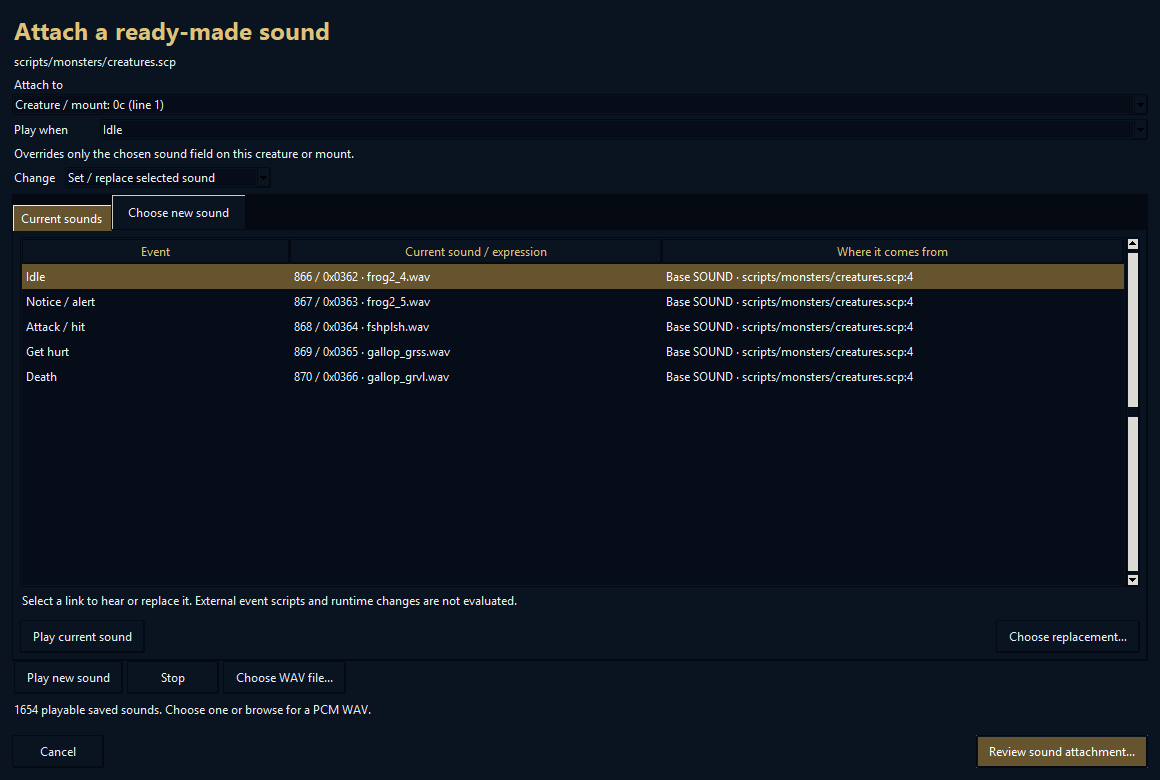
From the Asset Workspace, open Attach sound to this asset. The current-sounds view exposes the associations Studio can resolve, including inherited creature sounds and supported direct SOUND commands.
Audition a current sound, select the association to replace and choose an existing sound or import a ready-made WAV. Review both the client audio and the script change together.
Assigning a newly imported sound can use a free slot and change the selected link while leaving the old sound available to other assets. The Sound workshop also supports an explicit replacement of a selected sound record.
Computed sound IDs and arbitrary event/function chains cannot always be resolved statically. The interface identifies what it can inspect; it does not run a live server to discover hidden behavior.
06 / THE WORKFLOW
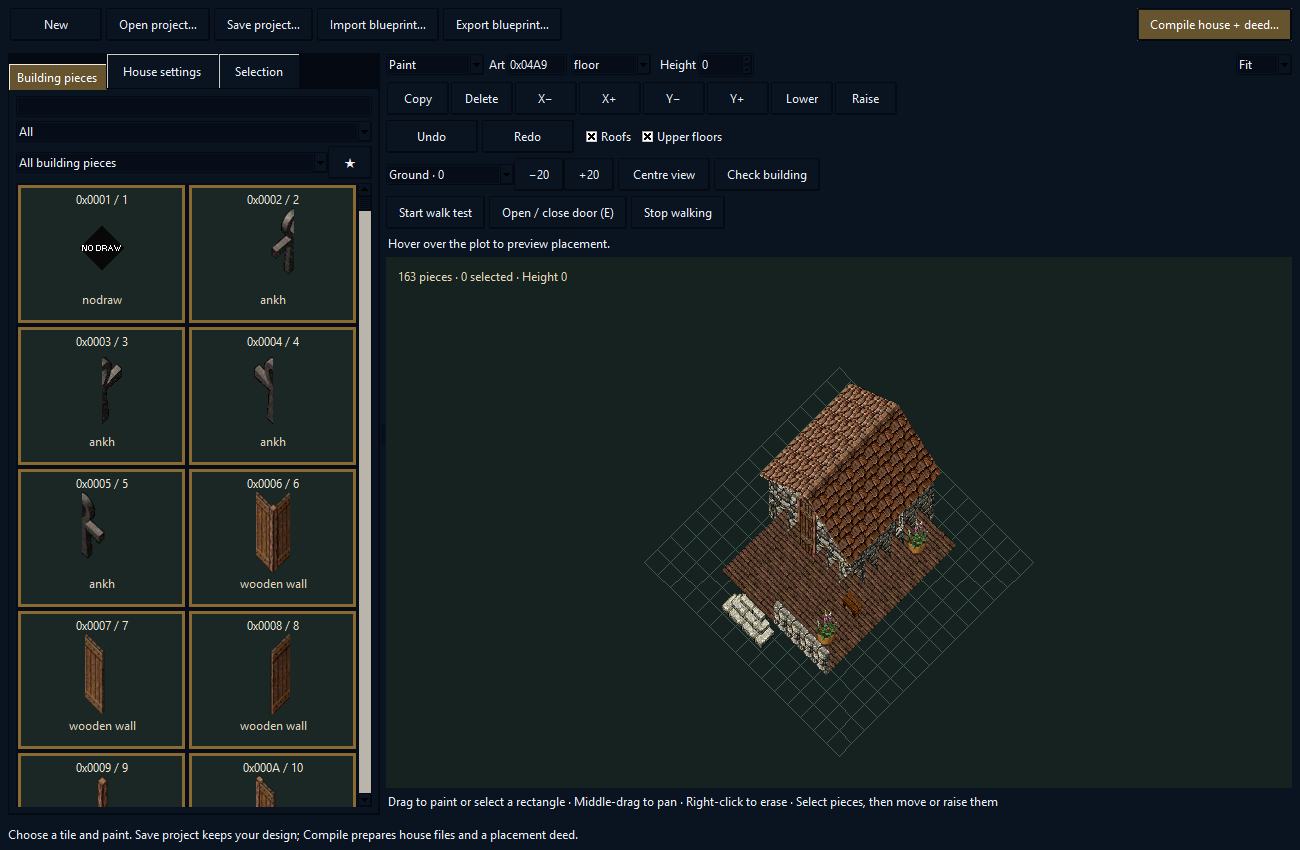
House Builder is a visual isometric editor using your client’s existing building pieces. Paint floors and walls, draw lines or perimeters, add roofs and decorations, select groups, copy them and adjust their position or height.
Use levels and visibility controls to inspect the structure. Walk preview and house checks help find missing floors, blocked routes and required components.
Save an editable house project or import/export a blueprint. Compile house + deed prepares a reviewed native multi and Sphere house/deed script. A compiled project remembers its binding for later updates.
Native housing still depends on the target client/server formats and rules. The project workflow keeps that compilation separate from simply saving your design.
IMPROVED IN 0.29 / WORLD GENERATOR
Generator version 2 smooths small biome flecks and boundary spurs, routes rivers with distance-aware drainage, and spaces trees according to canopy size. Trunk and canopy pieces remain paired.
Find area jumps to coast, forest, desert, snow, mountain, volcano or path locations. Changed settings mark the current preview as outdated and require regeneration before export.
Four varied test worlds and a full 7168 × 4096 Britannia export were checked. The full-size export kept water at height zero and its chosen three-level maximum adjacent terrain step; the audit client had no missing shoreline-art matches.
Export reports identify missing shoreline pieces when a client lacks them. Existing engine 1–3 settings use maintained legacy rules in 0.33.7; archive previous map exports to preserve a finished layout exactly. Regions, spawns and final client/server checks remain separate.
07 / THE WORKFLOW
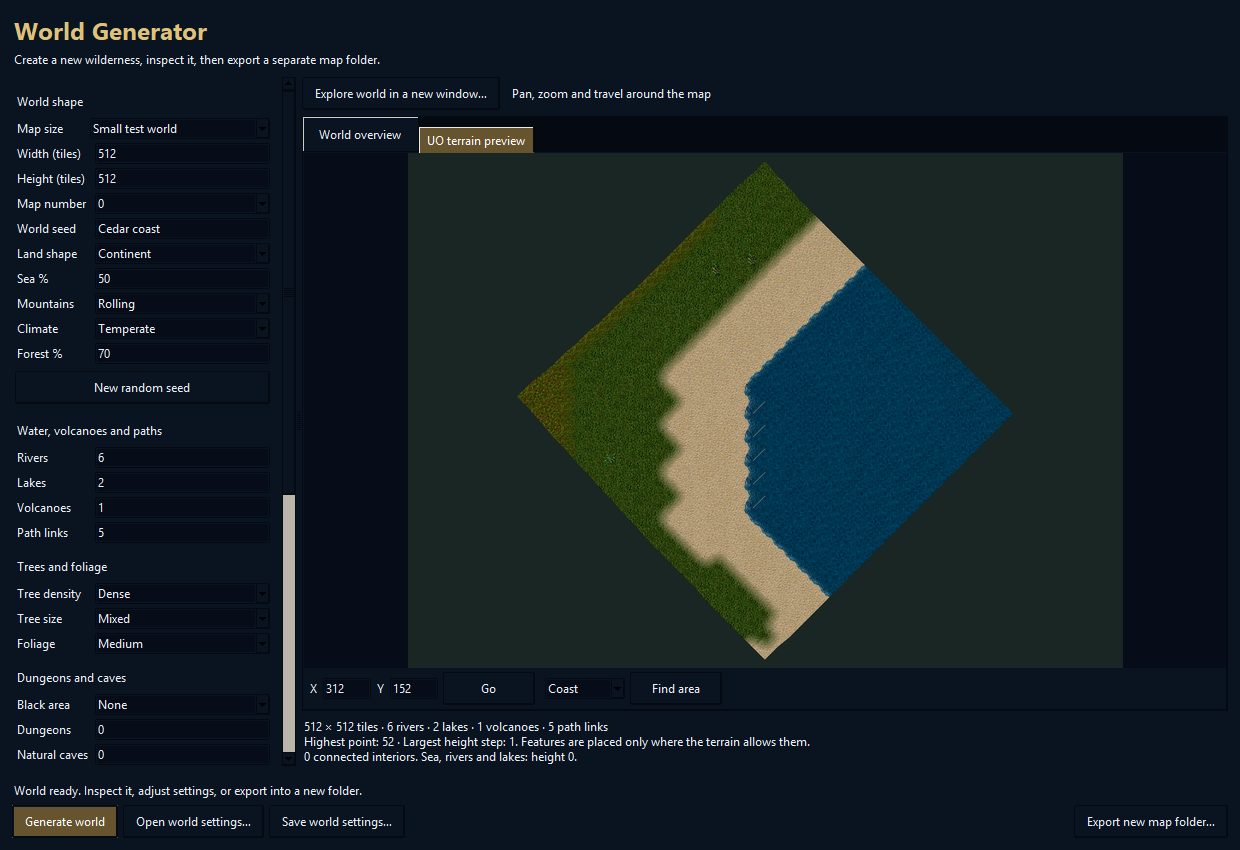
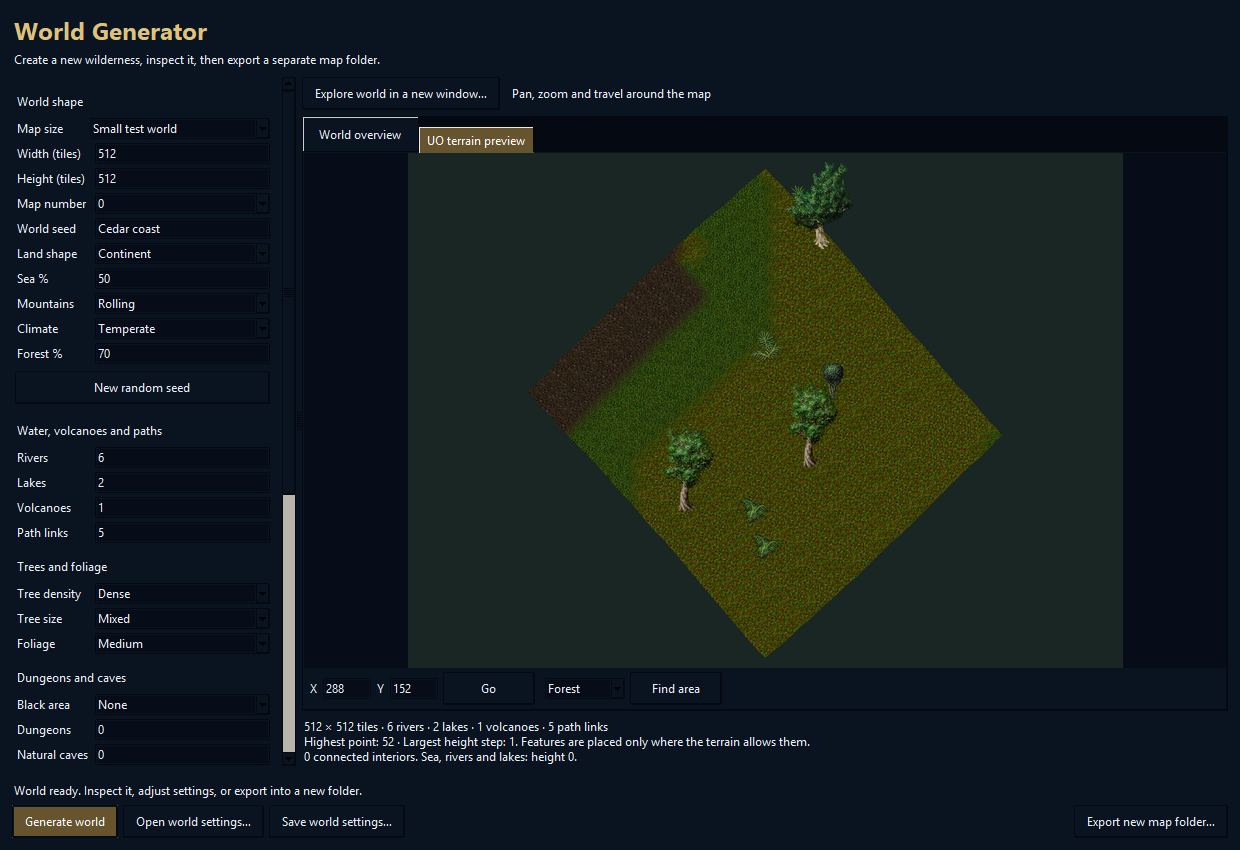
Choose a seed, dimensions, land shape and climate. Generate continents or islands with mountains, paths, rivers, lakes, deserts, snow and volcanoes. Choose tree size/density and foliage, and paint biome regions into the plan.
Terrain uses real native heights. Gentle, Rolling and Rugged settings bound elevations and adjacent steps; shores and entrances are graded, and all generated water remains level at Z=0.
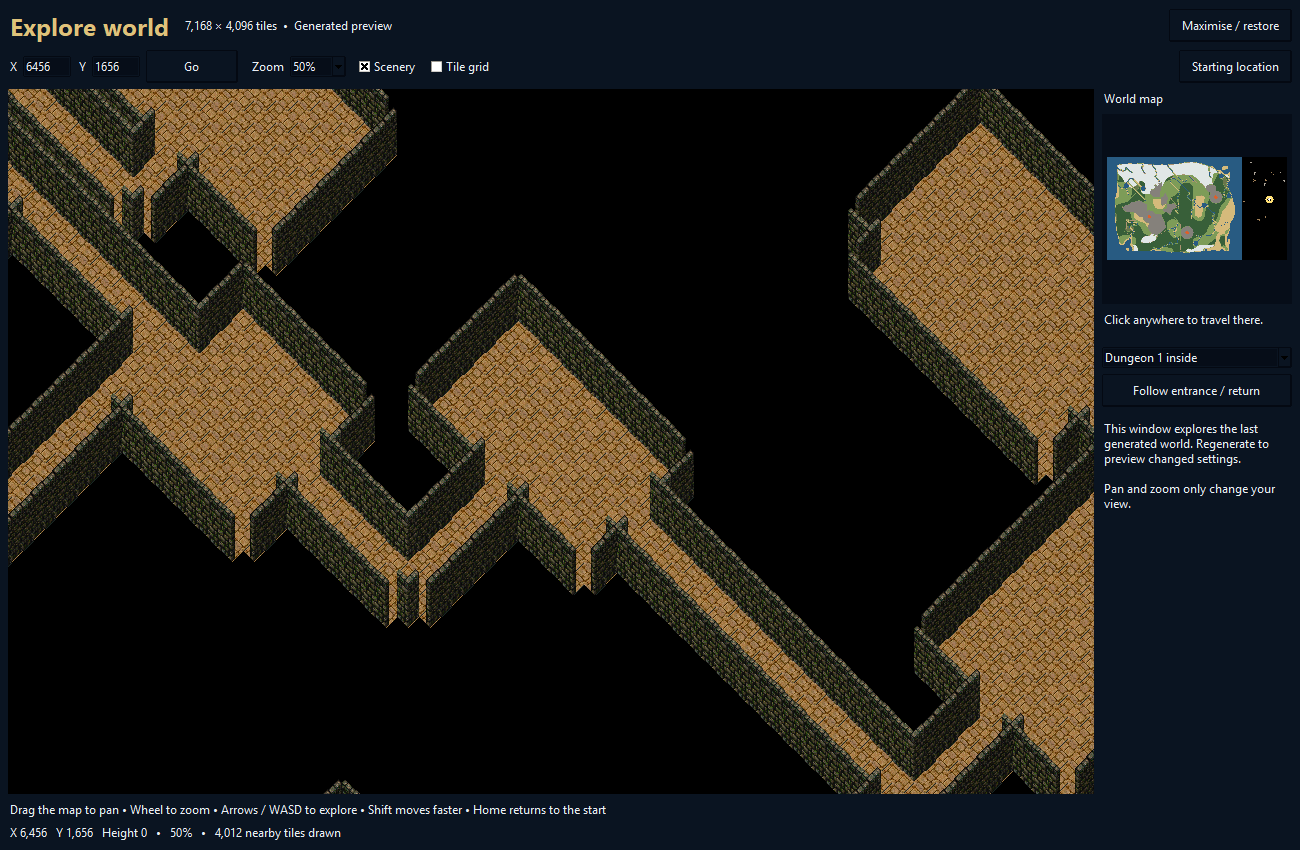
Reserve a black strip for off-world space. Generate connected dungeons and natural caves there, with outdoor entrances and paired return locations. Optional Sphere teleporter scripts are included with the separate export.
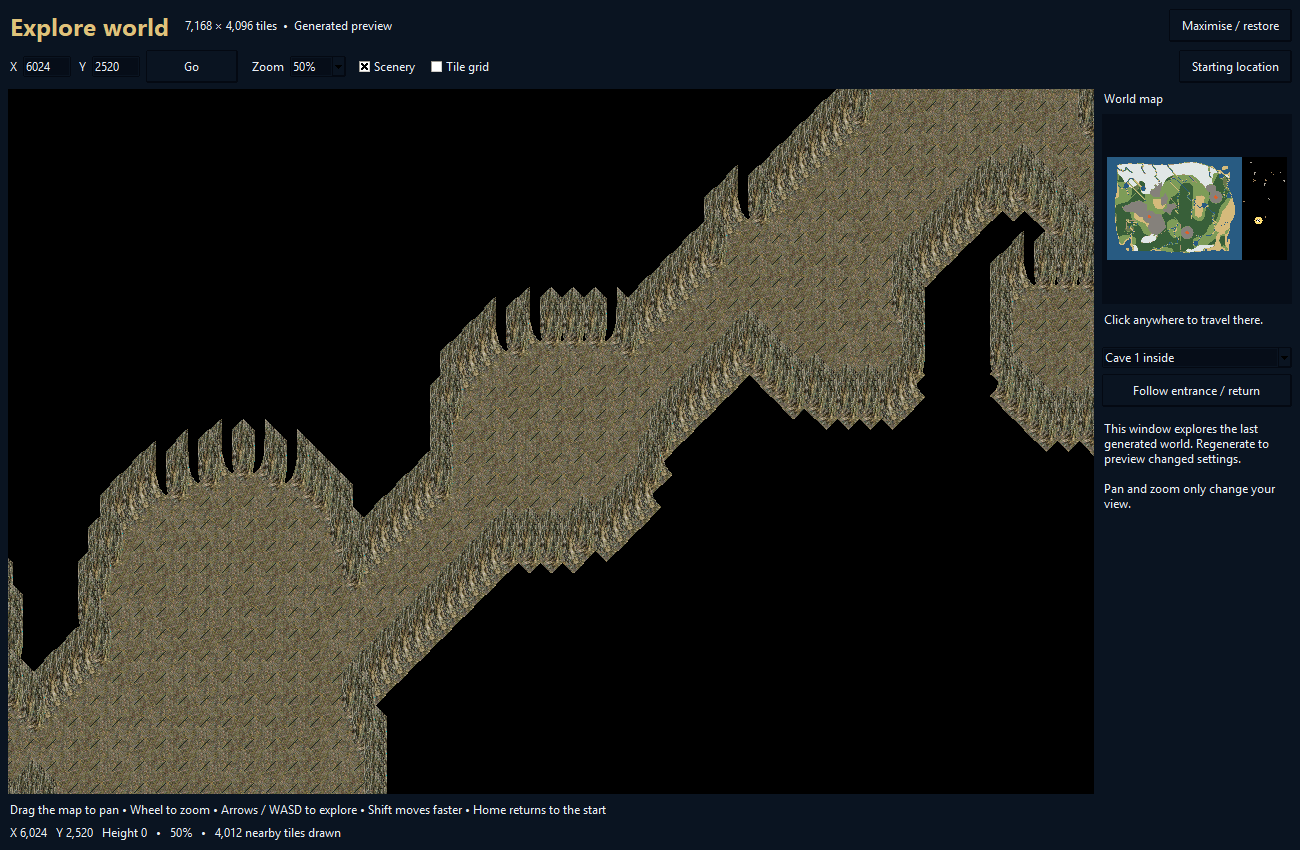
Open the World Explorer to pan, use wheel zoom, jump to features and follow entrance/return links. The generator exports a new map folder; it does not replace your live world or populate server regions, NPCs and loot.
08 / THE WORKBENCH
Inspect supported native gumps, import/export artwork and design Sphere dialogs with a visual preview and generated script.
Browse hue entries and compare how a color behaves on sample artwork before changing it.
Inspect body/action/direction combinations, preview frames and prepare compatible native animation imports and exports.
Open the shared converter, choose its direction and convert supported art, gump, sound, map and explicit multi families into a new output folder. Animation archives and all metadata families are not interchangeable.
Edit definitions or whole files, search scripts, inspect references and keep generated scripts in appropriate folders.
Inspect occupied/free candidate slots, export artwork in batches and use the relevant workflow to review destinations and linked files.
NEW IN 0.32.3 / KEEP STUDIO CURRENT
Studio checks the current release on this website after startup without blocking the workshop. When a newer stable version is available, review the release notes and choose whether to download it. Later leaves your current session open; Updates > Check now lets you check again manually.
The download shows progress and can be cancelled before installation. Studio verifies the installer’s published size and SHA256 before it can run.
Save or resolve pending edits before Studio closes for installation. The installer upgrades the existing application and retains your profiles. Client data and server files stay separate.
Studio remains usable offline or when an update check fails. Older installations need the website installer once to receive the updater.
Read the update steps →NEW IN 0.33.12 / DIRECT ANIMATION PLAYBACK
Open Animations > All animations. Choose Body animations for MUL/UOP bodies, or Animated items & effects for Art/AnimData artwork. Double-click or press Enter. The item/effect selection loads directly in Animations paused; use Play/Pause to start.
Use Play/Pause, Previous/Next and seek. Choose Preview FPS, speed, zoom and loop. Resizing preserves the Play/Pause label. Controls remain reachable in tested wide, narrow and larger-font layouts.
Artwork uses exact stored AnimData frame IDs and frame order, including repeated offsets. Native interval/frame-start values remain metadata, not a promise of in-game speed. Missing-frame and source-change notices remain explicit.
Save GIF exports the selected sequence at the chosen preview timing. Export frame exports the shown frame. Saving pauses playback and captures the selected frames/settings/project before the file chooser opens; cancelling leaves playback paused and saves nothing. GIF export does not install artwork or change native timing.
Preview in Test Scene is optional for artwork. Physical MUL/UOP preview and routed-body VD conversion remain distinct. Body VD commands are disabled for artwork; static art IDs never enter the body decoder. Existing destination protection, reviewed saves and backups remain. Verify final movement, riding, hues and effects on the receiving shard.
NEW IN 0.33.11 / BROWSE CLIENT ANIMATIONS
Choose the current project and open Animations. All animations lists available native body/source entries from the linked client even when no creature definition exists. The scan starts when the workspace is shown; use Reload library after external file changes.
Keep Body animations selected. Search a decimal ID, a hexadecimal 0x ID, or an available name; use the source filter for MUL banks or UOP. Shard definitions add optional names and logical labels rather than determining which native rows exist.
Double-click a row, or press Enter, to load its native preview and choose an available action and direction. The stored physical ID/source remains distinct from a routed logical body. Shared native slots are labelled. Unknown UOP hashes are reported, and a preview validates its payload on demand.
Select Animated items & effects to see AnimData sequences for static item art IDs. Double-click a row to load its sequence paused in Animations; optional Preview in Test Scene opens Test Scene Effect. The exact frame offsets are retained. Native interval/start bytes and missing-frame warnings are shown; preview FPS does not claim universal client timing.
A raw UOP group can have a different action layout from its routed body. Use the explicitly labelled Convert routed body to .vd… or Routed body export options… for compatible body distribution. Stored frame/GIF previews remain separate. Static item art IDs never enter the body decoder; items/effects use the native artwork distribution workflow below.
Cancelled or superseded reads cannot replace the current project's data. Reload library refreshes the inventory after external writes; changes detected during a read reject that result. Legacy art.def/verdata artwork overrides are explicitly not applied in this native library preview. Existing reviewed saves, free-space protection and backups remain available. Verify final movement, riding, hues and effects on the receiving shard.
NEW IN 0.33.10 / GRAPHICS SPACE AND REPLACEMENTS
Open Asset spaces to browse native item artwork, animation bodies and supported gump slots. Choose the source and bank, use the state filter, and hover a thumbnail for its ID and protection details.
Free candidate means no recognized artwork, metadata, indexed reference or queued reservation was found. Used contains native data. Referenced is protected by metadata, scripts or mappings even when pixels are blank. Queued is reserved by pending work. Unavailable cannot be verified or written safely. A candidate remains subject to final review; server expressions and receiving-game behaviour need their own checks.
Import Tiles and Import Statics both import static item artwork. Automatic placement uses the same effective inventory as the browser and excludes protected and queued IDs. Larger batches keep native image-size and memory bounds; terrain editing remains a separate tool.
For an intentional replacement, open View graphics review details…. Inspect the listed kind, ID, source and bank, then select I confirm replacing the existing graphics listed in this review. This starts unchecked and permits only that reviewed content. Keep a backup starts enabled for replacements.
Changed graphics, references, destinations, content or queued reservations require a fresh review. Queued and unavailable destinations cannot be approved as ordinary replacements. Restored sessions require replacement approval again.
An imported body protects its whole physical MUL footprint, including aliases that overlap in the same bank. Mount riding-memory artwork and an imported shrink icon are checked separately. A new secondary-bank route also protects its logical Sphere body identity; raw storage IDs and logical body IDs are distinct.
Equipment keeps its stricter full-body, paperdoll and mapping checks. Relevant client fallback mappings and verdata overrides are protected conservatively. Review, backup and recovery remain the save workflow; verify the result in the receiving client and shard. These safeguards do not restore graphics overwritten in an earlier version.
UPDATED IN 0.33.9 / REVIEW REGION CHANGES
Open Map Regions, choose the facet in Map, then select its listed region. Double-click or press Enter to locate it. Change its display name, boundaries or rules and choose Apply to draft. Clicking another region applies valid pending name or rule edits and keeps the intended sidebar selection.
Leaving an unchanged form retains its original unsupported values. Invalid pending coordinates still need correction before you change selection or review; Studio keeps that input available. Existing definitions with boundary expressions remain read-only.
Choose Review changes. Exactly unchanged loaded definitions retain their original script text, including legacy or unsupported boundaries. They no longer prevent a different region’s valid edit from reaching review.
Changed and new regions still require 1–256 boundary rectangles and valid properties. An error identifies the affected region and source file; review that definition rather than adding a boundary to an unrelated region.
Preservation does not repair unsupported geometry or treat an unsupported definition as valid. If you deliberately edit such a definition, its new values must pass the existing checks.
The normal reviewed save, queue, backup and recovery steps remain. Studio still checks for changes to the source script collection before saving, so another edit to the originals requires reopening or reconciling your draft. Verify your intended boundary and server rules on the receiving shard.
09 / THE FINAL REVIEW
Workflows prepare a review of the affected client files and scripts. Queue supported changes, inspect pending work and save the linked operation together. Preflight checks run before saving and refuse busy or changed inputs where the file checks detect them.
Reviewed game-file saves and Save All show a moving activity bar, the current file and its position in the bundle, plus elapsed minutes and seconds. The bar shows continuing work rather than an estimate of time remaining.
After writing, Files saved. Refreshing identifies the next phase. Script-reading counts, reference resolution and folder refresh remain visible while the window stays responsive. Close, Back and save controls stay disabled until the operation finishes; there is no cancellation midway through a game-file save.
If refresh fails after writing, the message explains that the files were already saved. The completed queue is cleared and open unsaved script text is retained.
Session checkpoints, the recovery center, backups and project comparisons help you understand what changed and resume interrupted work.
Content packs move supported prepared changes between projects. Bulk exports and converters write separate outputs. Related-content removal shows references and scope before deletion.
Use a working copy and keep backups. A file-access check cannot replace a shard-specific gameplay test, and the parser is not a complete Sphere execution engine.
Read the exact steps and format limits in the guide →YOUR NEXT UO PROJECT STARTS HERE
Artwork, animation, scripts, sound and worlds. One place to work.
v0.33.14 · Windows 10/11 x64